
Ready Made - Slider Section
The Slider Section in InterFunnels allows you to add visually appealing, interactive sliders to your pages. This feature is versatile and highly customizable, letting you add images, headings, subheadings, and text for a professional and engaging look. Below, we’ll go through the steps to set up and customize a slider and explain each option available.
Adding a Slider
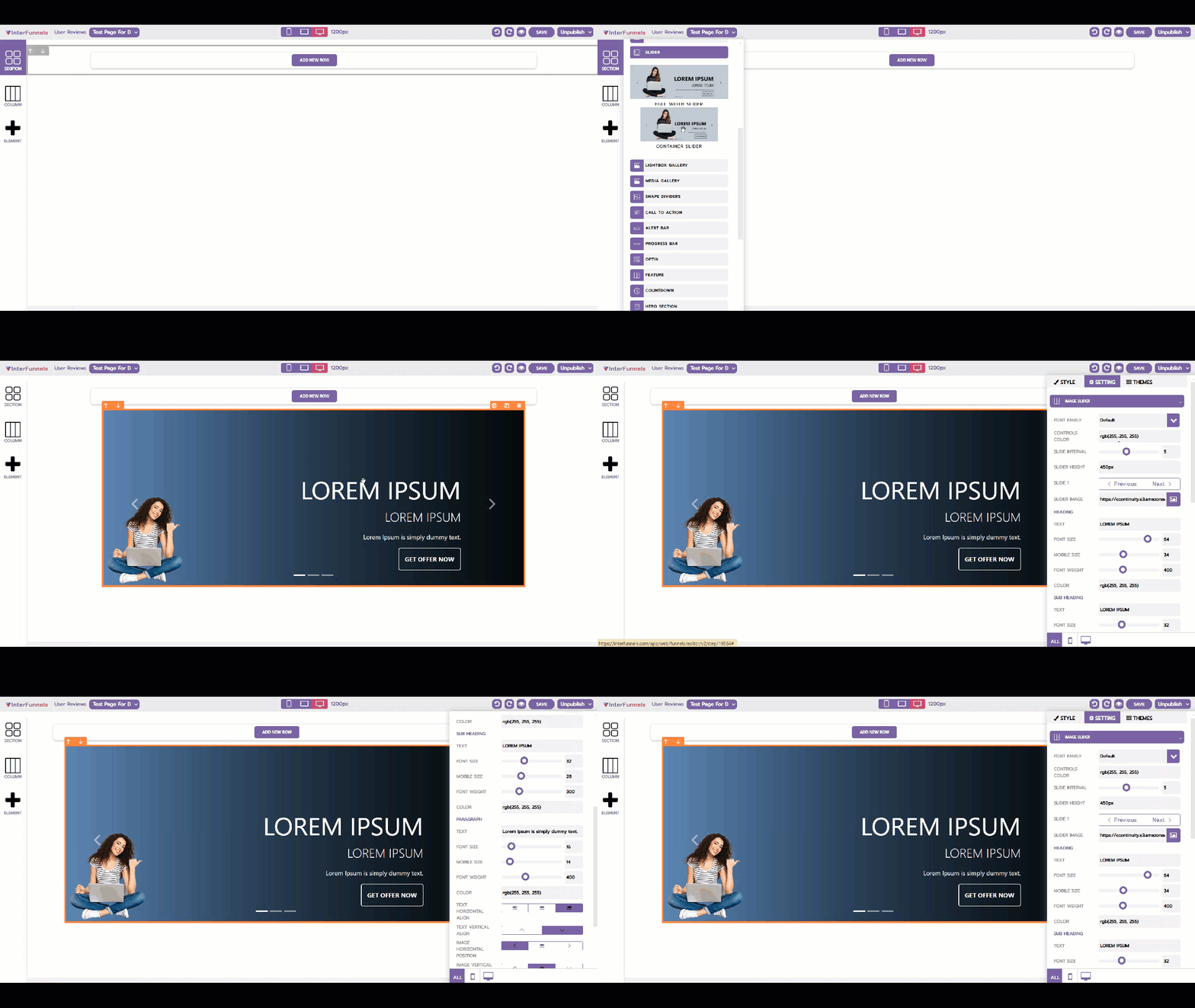
- Access the Slider Section: Click on the "Section" tab in the left menu and drag and drop the slider either Full Width Slider or Container Slider on to your funnel page.
- Access Slider Settings: Click on the slider or the ⚙️Icon on the slider to access the side panel.
Slider Customization Options
Each slide can be customized to suit your design requirements. The customization panel is divided into the following components:
1. Image Slider Options

- Font Family: Choose a font style for text on the slide.
- Controls Color: Adjust the color of navigation controls (arrows and dots).
- Slide Interval: Set the time in seconds for automatic slide transitions.
- Slider Height: Define the height of the slider in pixels.
- Slide Images: Add or update the image for each slide. Use the "Previous" and "Next" buttons to navigate between slides.
2. Heading Customization

- Text: Enter the main headline for the slide.
- Font Size: Adjust the size of the heading text for both desktop and mobile views.
- Font Weight: Change the boldness of the heading text.
- Color: Customize the text color for better visibility.
3. Subheading Customization

- Text: Add a subheading for additional information.
- Font Size: Set the size of the subheading for desktop and mobile views.
- Font Weight: Adjust the thickness of the subheading text.
- Color: Choose a complementary color for the subheading.
4. Paragraph Customization

- Text: Include descriptive content or call-to-action text for the slide.
- Font Size: Customize the size of the paragraph text for desktop and mobile devices.
- Font Weight: Define the boldness of the paragraph text.
- Text Alignment: Align text horizontally or vertically within the slide.
- Image and Text Positioning: Adjust the horizontal and vertical placement of both text and images on the slide.
Additional Options:
- Remove Slide: Delete unnecessary slides using the "Remove Slide" button.
- Add New Slide: Create additional slides with unique content by clicking "Add Slide."
Best Practices:
- Balance Visuals and Text: Use high-quality images and concise text to maintain a professional look.
- Color Contrast: Ensure text colors contrast well with the background image for readability.
- Optimize for Mobile: Adjust font sizes and positions for optimal mobile viewing.
By following these instructions, you can create an attractive and functional slider for your InterFunnels pages, enhancing user engagement and visual appeal.