
Ready Made - Light box And Media Gallery Section
The Lightbox Gallery section is a pre-built feature inside the drag-and-drop funnel builder. This section is designed to help you showcase images in a customizable and visually appealing layout. Here’s a step-by-step guide to using this feature:
1. Dragging and Dropping the Lightbox Gallery Section
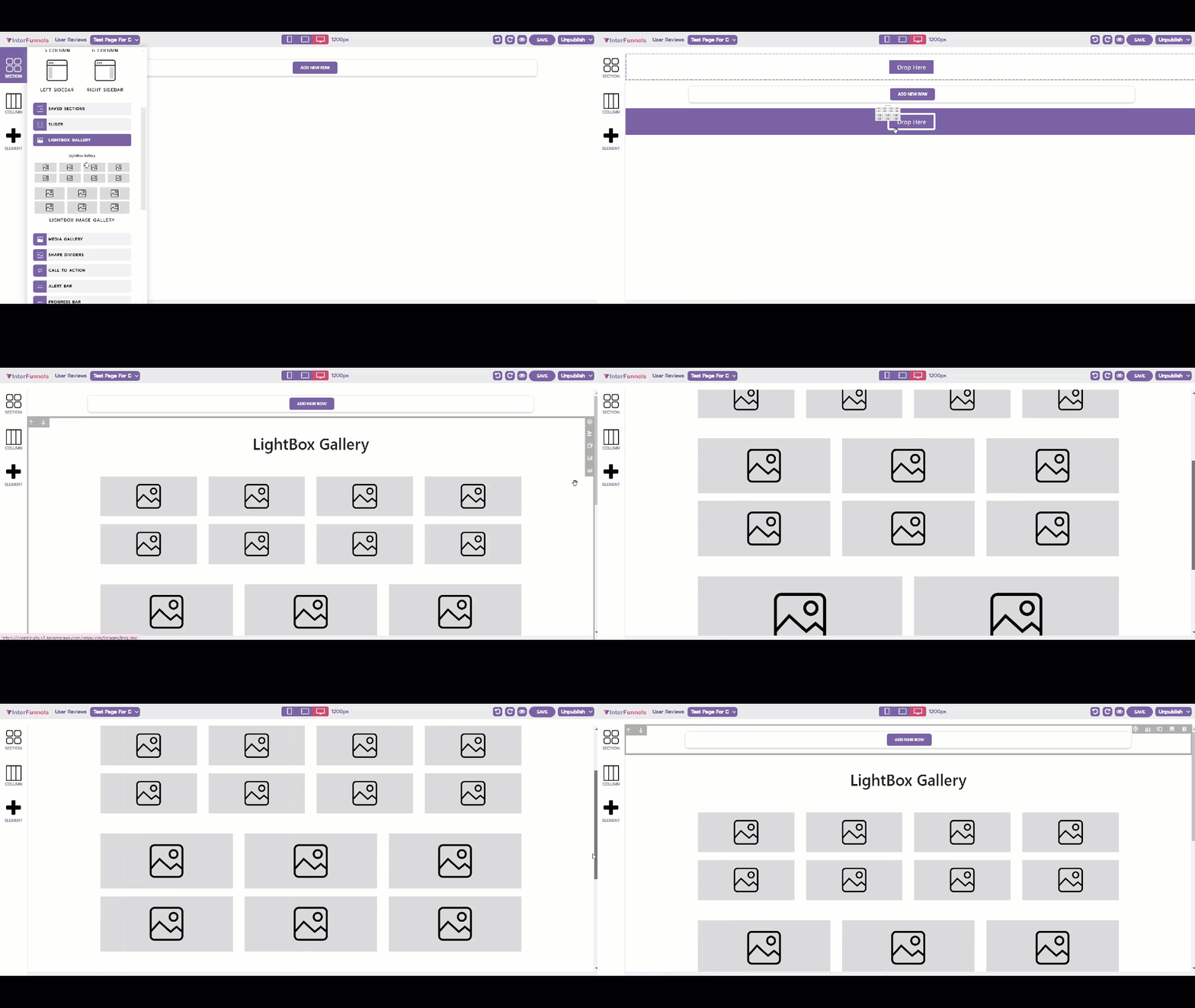
The Lightbox Gallery section offers three column types:
- 8 Picture Collage
- 6 Picture Collage
- 4 Picture Collage
Simply drag and drop the Lightbox Gallery section onto your page.
2. Resizing, Deleting, or Editing Picture Boxes

Each column is fully customizable:
- You can resize individual picture boxes by dragging the edges.
- Delete a box if you don't need it, or duplicate it to maintain consistency.
3. Adding Images to the Picture Boxes

Adding images is simple:
- Click on the picture box you want to update.
- Use the Image URL field in the settings panel to upload your image.
1. Media Gallery Section

2. The Media Gallery section offers three types of templates:
- Left Bottom
- Left Vertical
- Right Bottom
3. Drag and drop the Media Gallery section onto your page.

4. Adding Images to the Picture Boxes

Adding images is simple:
- Click on the picture box you want to update.
- Use the Image URL field in the settings panel to upload your image.
- You can also remove or add more images in your gallery
Conclusion
The Lightbox and Media Gallery sections provides an efficient way to create visually appealing image layouts. Experiment with different column types and styles to find what works best for your funnel.