
Store Stats: How to Analyze Your Performance
The Stats section in InterFunnels is your central hub for understanding your store's health and performance. It provides detailed reports on your sales, customers, and products, allowing you to make smart, data-driven decisions. This tutorial will guide you through each report available in your Stats dashboard.
Step 1: Accessing the Stats Dashboard
-
Log in to your InterFunnels account.
-
From the main navigation menu on the left, click on STATS.
-
You will now see the analytics dashboard, which offers several report tabs for different insights.
Step 2: The "Sales by Time" Report - Track Revenue Trends
This report shows how your sales perform over a specific period.

-
How to Use It:
-
Use the DATE RANGE selector at the top to choose your time frame (e.g., Last 30 days, a custom range).
-
Use the GROUP BY dropdown to aggregate data by Day, Week, Month, or Year.
-
The main chart will visually display your sales trend, helping you identify peaks, dips, and overall growth.
-
-
Why It Matters: This is essential for understanding the impact of your marketing campaigns, seasonal trends, and overall business growth.
Step 3: The "Sales by Location" Report - Understand Your Customers
Discover where your customers are located and which geographic areas generate the most revenue.

-
How to Use It:
-
Click on the SALES BY LOCATION tab.
-
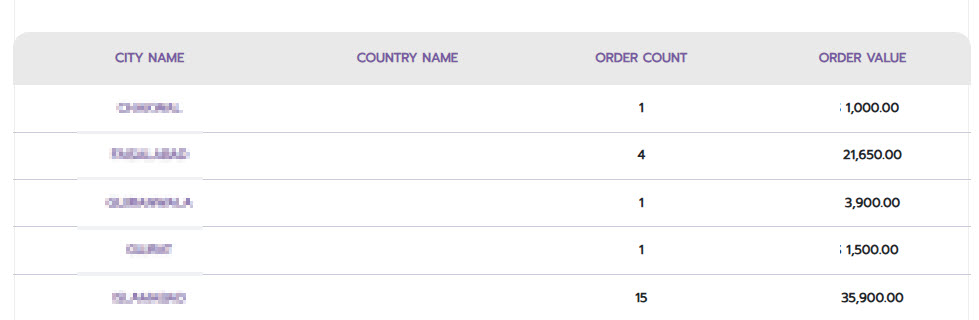
The report displays a list of City Names and Countries alongside key metrics like Order Count and Order Value.
-
A visual chart provides a quick, at-a-glance understanding of sales distribution.
-
-
Why It Matters: Use this data to target your advertising to high-performing regions, plan for international shipping, and understand your market reach.
Step 4: The "Sales by Product" Report - Identify Your Best Sellers
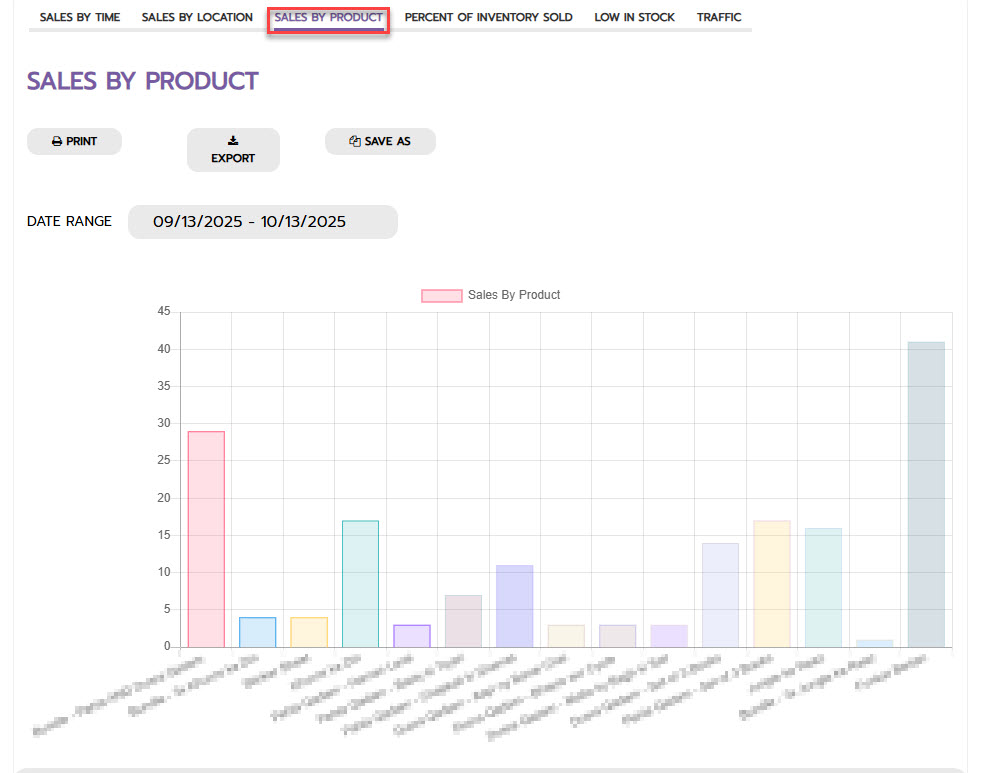
This crucial report details exactly which products are driving your revenue.
-
How to Use It:
-
Navigate to the SALES BY PRODUCT tab.
-
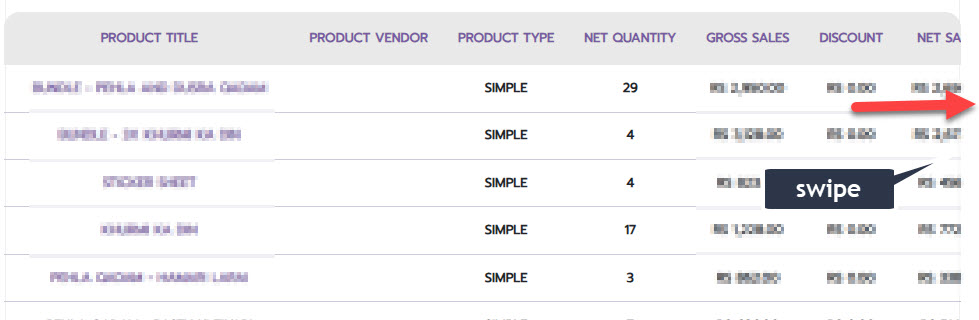
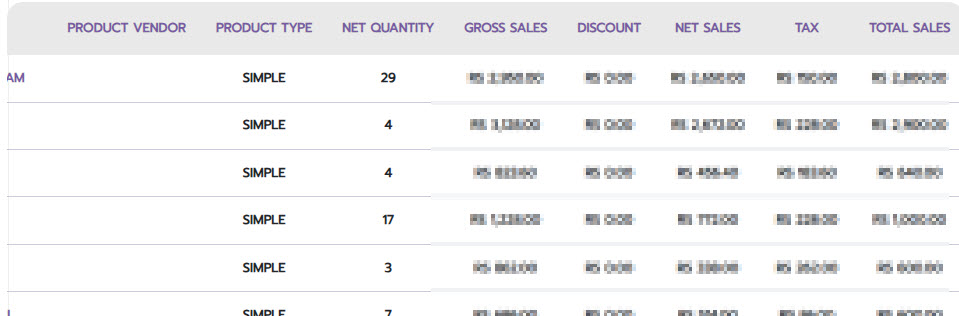
You will see a detailed table with columns for Product Title, Vendor, Type, Net Quantity sold, Gross Sales, Discount, Net Sales, Tax, and Total Sales.
-
Use the PRINT, EXPORT, or SAVE AS buttons to download this data for deeper analysis or accounting.
-
-
Why It Matters: Identify your top-selling products by units sold and by revenue. This helps you decide which products to promote more and which may need to be re-evaluated.
Step 5: The "Percent of Inventory Sold" Report - Analyze Category Performance
Get a high-level overview of which product categories are contributing most to your sales.

-
How to Use It:
- Click on the PERCENT OF INVENTORY SOLD tab.
-
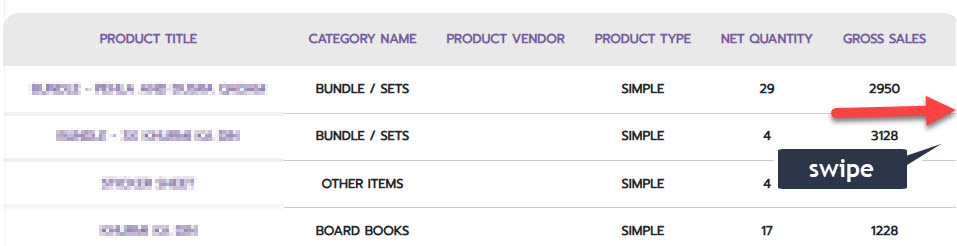
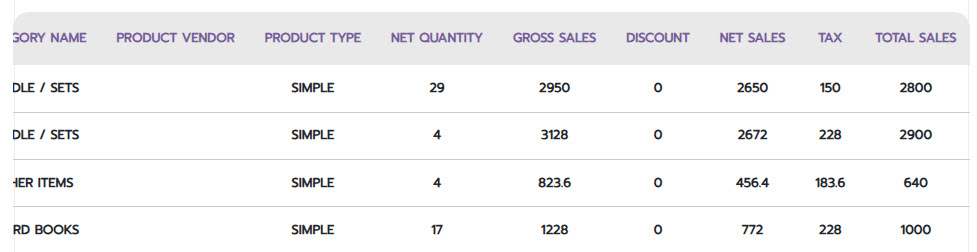
The report displays a chart (like a pie or bar chart) showing the percentage of total sales attributed to each category, such as "Bundle / Sets" or "Board Books."
-
You will see a detailed table with columns for Product Title, Vendor, Type, Net Quantity sold, Gross Sales, Discount, Net Sales, Tax, and Total Sales.
-
Why It Matters: This helps you understand customer preferences at a category level, informing your future inventory purchasing and marketing focus.
Step 6: The "Low in Stock" Report - Manage Your Inventory
Proactively manage your inventory to avoid stockouts and lost sales.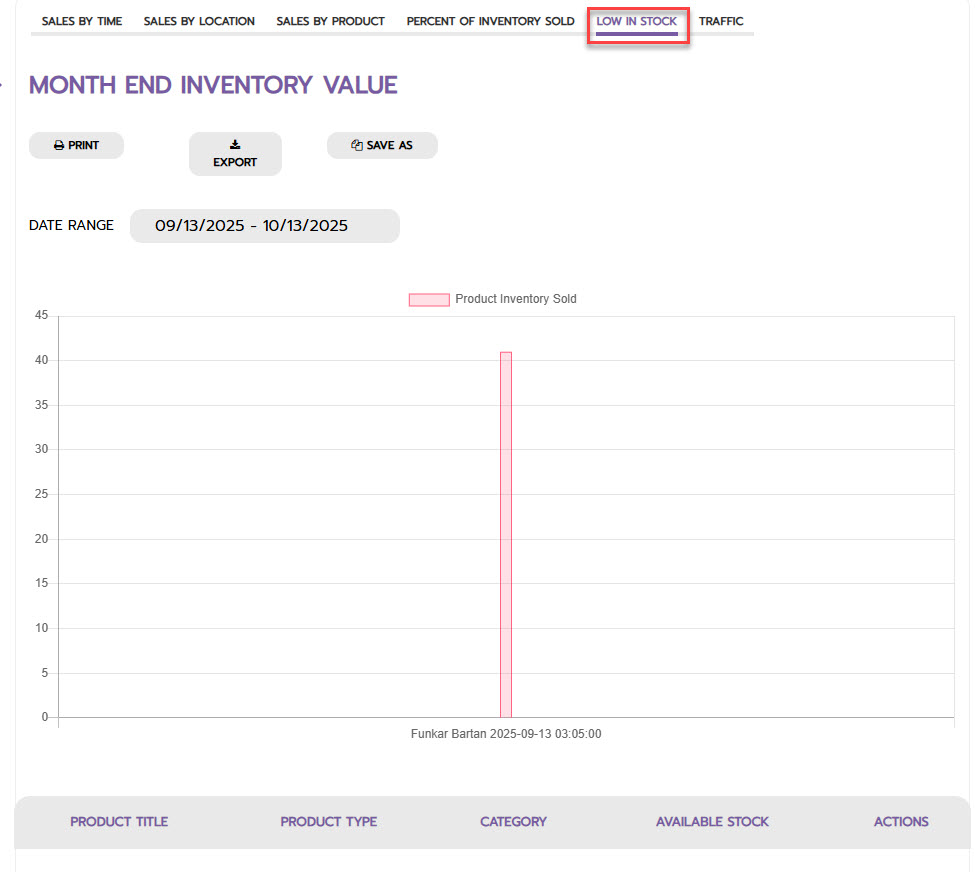
How to Use It:
-
Go to the LOW IN STOCK tab.
-
This section lists products that are running low, showing the Product Title and Available Stock.
-
Why It Matters: This alert system allows you to reorder best-selling items in time, ensuring you never miss a sale due to being out of stock.
Step 7: The "Traffic" Report - Optimize Your Sales Funnel
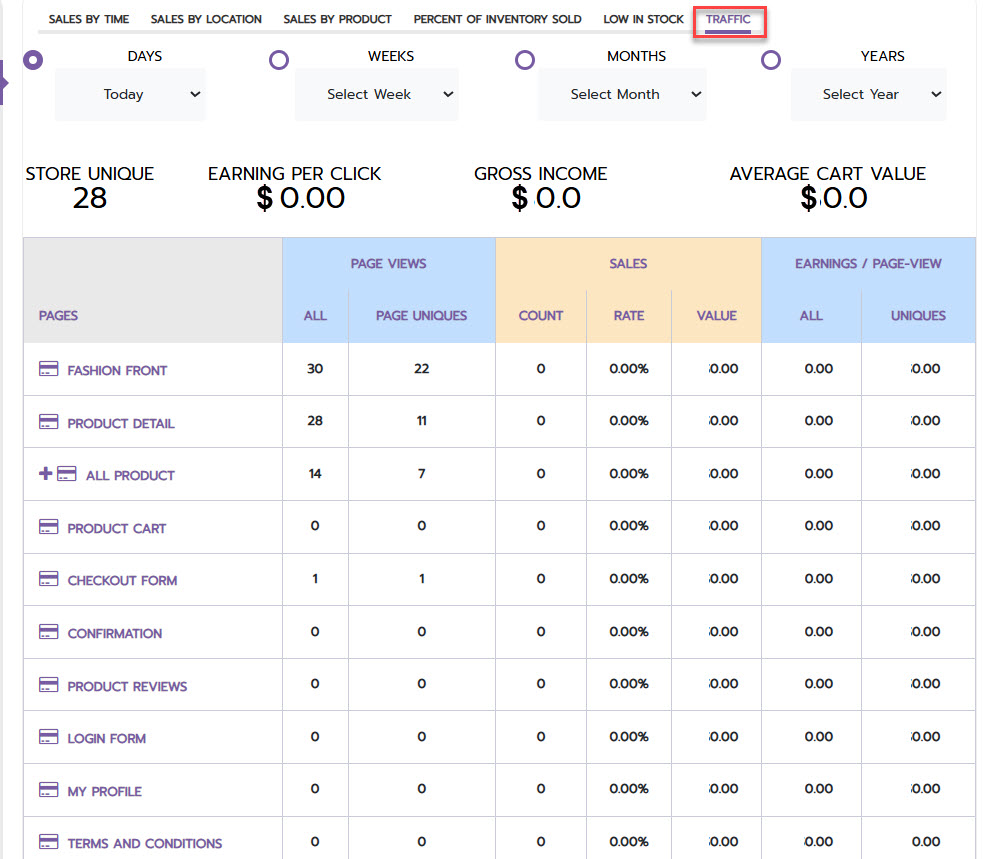
Analyze how visitors interact with your store and identify where you are losing potential customers.
-
How to Use It:
-
Select the TRAFFIC tab.
-
Review the table that lists every page in your funnel (e.g., Fashion Front, Product Detail, Checkout Form).
-
Key metrics to analyze:
-
Page Views & Uniques: See how many times a page was viewed and by how many unique visitors.
-
Sales Count & Rate: See how many sales were generated from a page and its conversion rate.
-
Earnings per Page-View: Understand the monetary value of each visit to a page.
-
-
-
Why It Matters: If you see a page with high traffic but a low conversion rate (like the checkout page), it indicates a problem that needs fixing. This report is key to optimizing your entire sales funnel.
Conclusion
The InterFunnels Stats dashboard is a powerful tool that goes beyond simple sales tracking. By regularly reviewing each of these reports—from sales trends and customer locations to product performance and website traffic—you gain a 360-degree view of your business. Leverage these insights to refine your marketing strategies, manage inventory wisely, optimize your store's user experience, and ultimately, drive more sales and growth.