
How to Create and Send an Email Campaign in InterFunnels
The Email Marketing tool in InterFunnels allows you to design beautiful campaigns, manage your subscriber lists, and send targeted broadcasts to drive engagement and sales. This guide will walk you through creating your first email campaign from start to finish.
Step 1: Accessing the Email Marketing Section

-
Log in to your InterFunnels account.
-
From the top navigation bar, click on EMAIL.
-
You will be taken to the Email Dashboard, where you can manage Lists, Campaigns, and Settings.
Step 2: Creating a New Campaign

-
In the Email section, click on the CAMPAIGNS tab.
-
Click the ADD NEW button to create a new email campaign.
Step 3: Choosing an Email Template
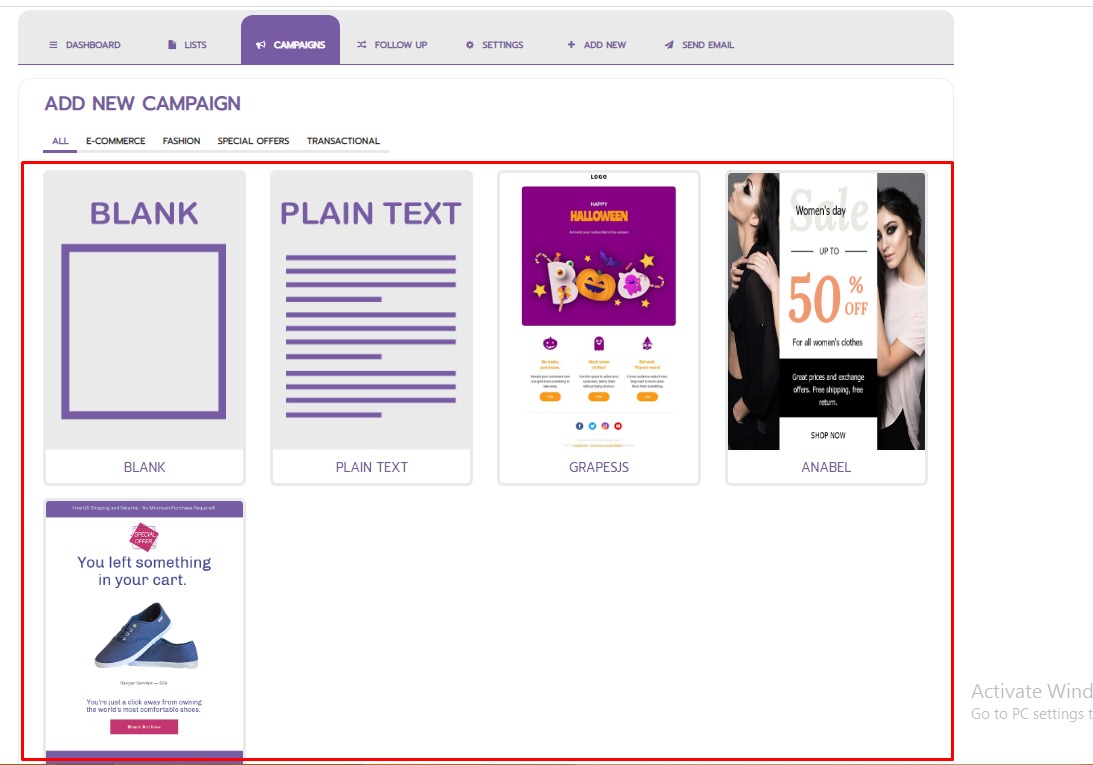
InterFunnels offers a variety of pre-designed templates to get you started quickly.
-
You will see template categories like ALL, E-COMMERCE, FASHION, and SPECIAL OFFERS.
-
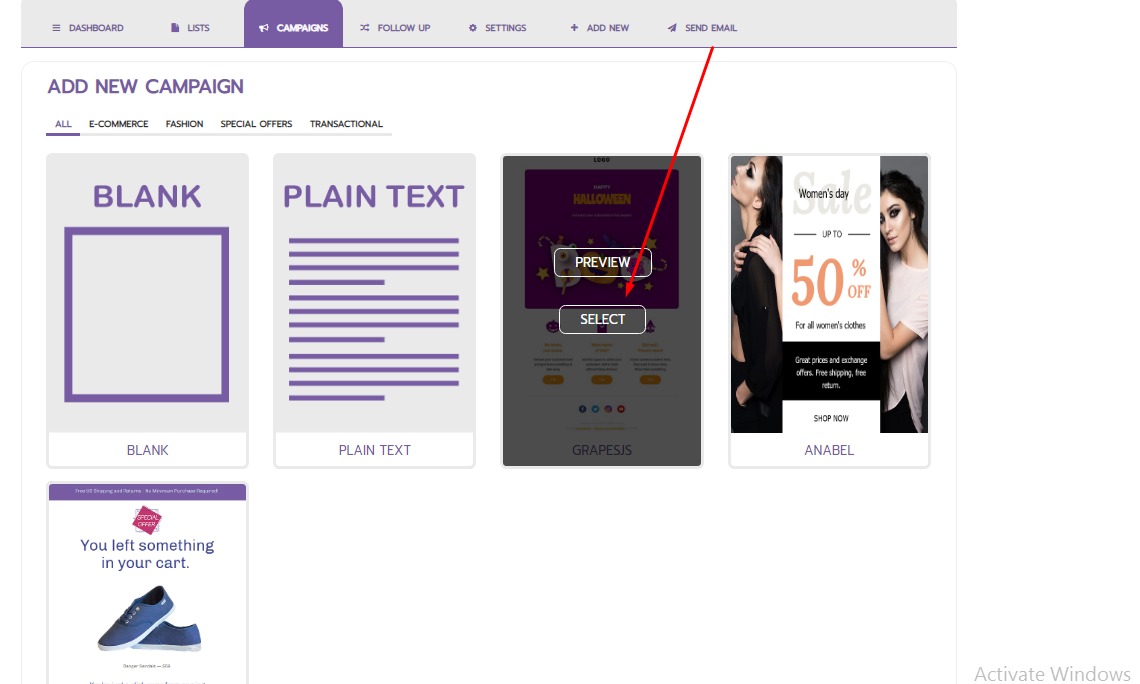
Browse through the available templates. For this example, let's select the "HALLOWEEN" template by clicking on it.
-
You can also start with a BLANK template or a PLAIN TEXT email if you prefer to build from scratch.
Step 4: Setting Up Your Campaign Details
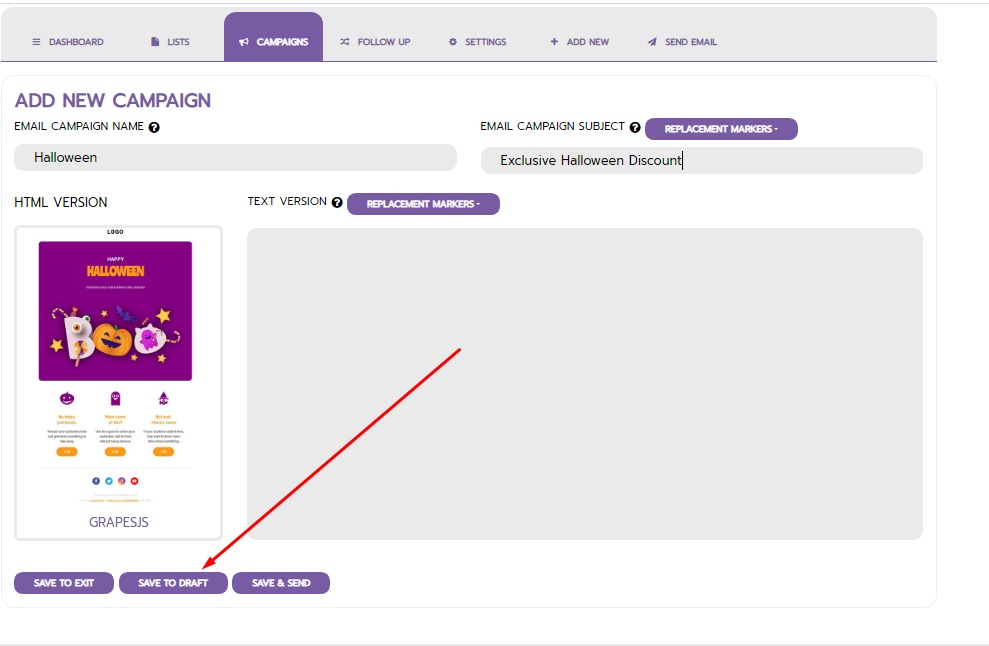
After selecting a template, a pop-up will appear for you to configure the basic settings.
-
EMAIL CAMPAIGN NAME: Enter an internal name for your campaign (e.g., "Halloween").
-
EMAIL CAMPAIGN SUBJECT: Enter the subject line that your subscribers will see in their inbox (e.g., "Exclusive Halloween Discount").
-
Click to proceed. You will then be able to customize the template's design and content using the built-in editor (e.g., GrapesJS).
Step 5: Configuring Your SMTP Settings (Sending Server)
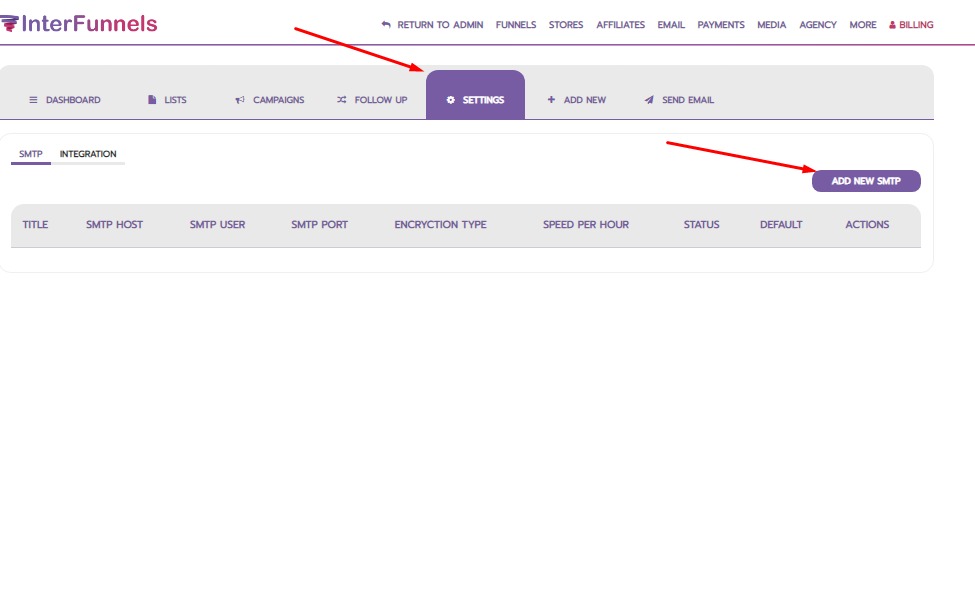
To send emails, you need to connect a sending server (SMTP).
-
Go to the SETTINGS tab within the Email section.
-
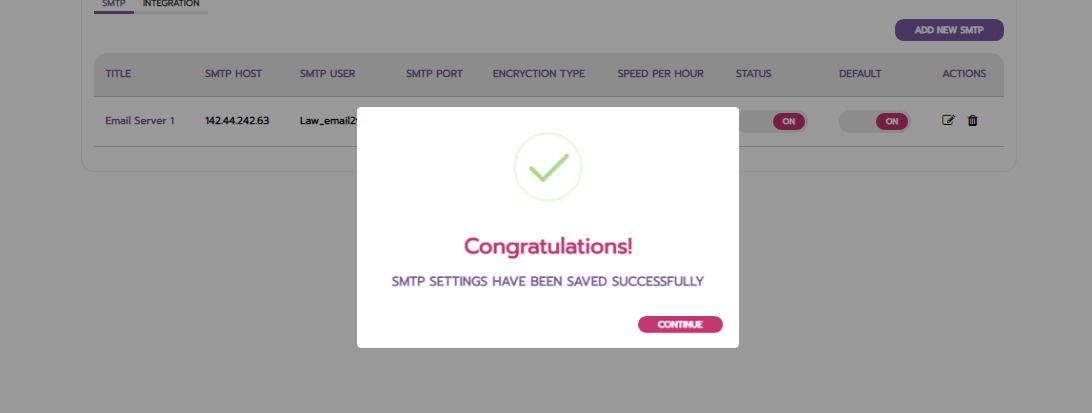
Click on SMTP and then click ADD NEW SMTP.

-
Fill in your SMTP credentials:
-
SMTP TITLE: A name for this server (e.g., "Email Server 1").
-
SMTP HOST: Your SMTP server address (e.g.,
142.44.242.63). -
SMTP USER: Your SMTP username.
-
SMTP PASSWORD: Your SMTP password.
-
SMTP PORT: The port number (e.g.,
2525). -
ENCRYPTION: Select the appropriate type (e.g., None, SSL, TLS).
-
SPEED PER HOUR: Set an hourly sending limit.
-
STATUS: Set to "Active".
-
-
Click VERIFY SMTP to test the connection, then SAVE. A success message will confirm your settings have been saved.
Step 6: Sending Your Email Campaign
Once your campaign is designed and your SMTP is set up, you are ready to send.
-
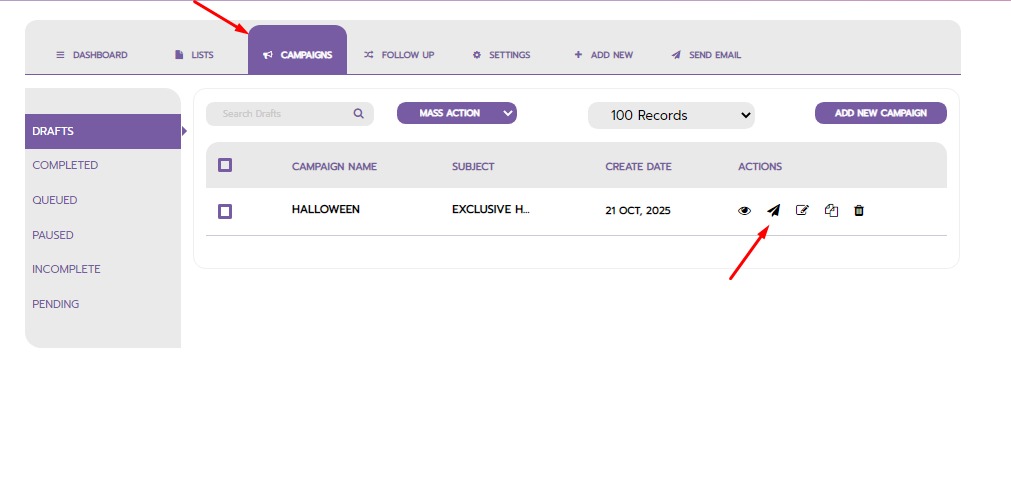
Go back to the CAMPAIGNS tab. You will see your campaign (e.g., "HALLOWEEN") listed with a status like "Draft" or "Incomplete".
-
Click the SEND icon (usually a paper plane) next to your campaign.
Step 7: Configuring the Send Settings
A "SEND CAMPAIGN" wizard will open.

-
SELECT LISTS: Choose the subscriber list you want to send to (e.g., "INTERFUNNELS EMAIL LIST").
-
FROM NAME: Enter the sender's name your subscribers will see (e.g., "Interfunnels Email List").
-
FROM EMAIL: Enter the "From" email address (e.g.,
[email protected]). -
REPLY-TO EMAIL: Set the address for recipient replies (e.g.,
[email protected]). -
SCHEDULE CAMPAIGN: Choose to send it immediately ("NOW") or schedule it for a later time.
then Click Next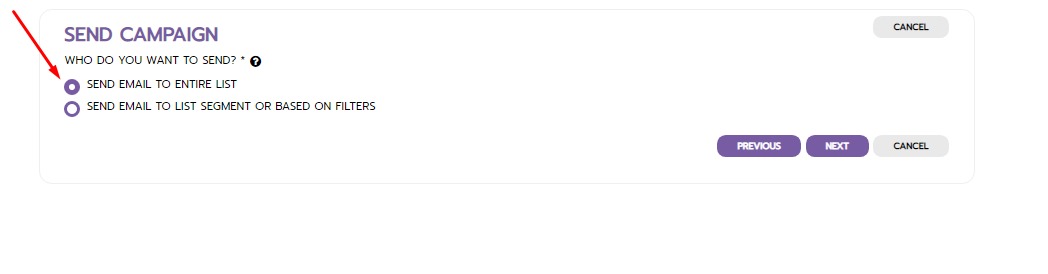
- On the next prompt select recipients either the entire list or list segments, then Click Next
-
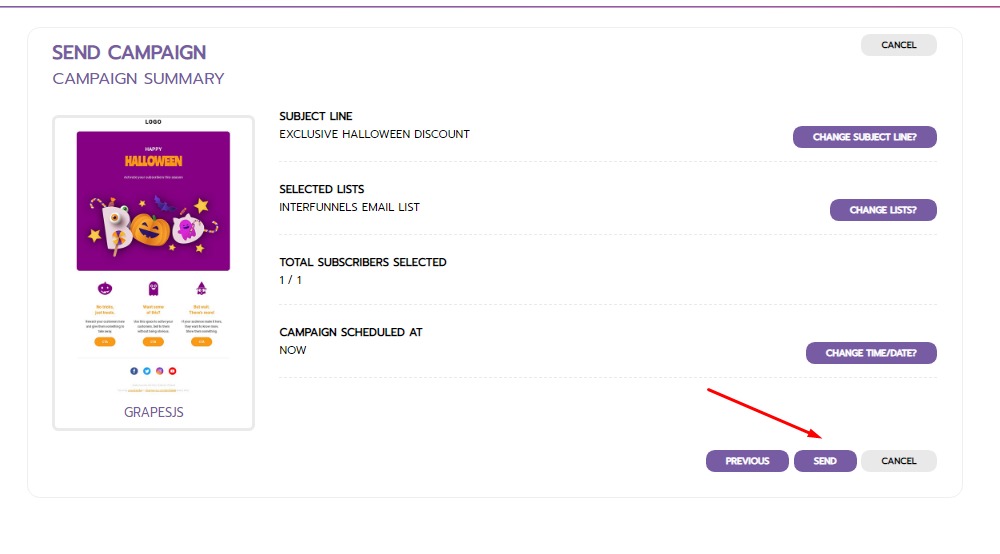
Click SEND to dispatch your campaign, after reviewing the details you have entered.
Step 8: Tracking Your Campaign
After sending, you can track the progress of your email.

-
Stay in the CAMPAIGNS tab.
-
Look for the "Queued" section. Your sent campaign will appear here with details like:
-
CAMPAIGN NAME
-
SUBJECT
-
LIST NAMES
-
RECIPIENTS (showing the send progress, e.g.,
0 / 1) -
START TIME
-
-
This section allows you to monitor the delivery status in real-time.
Conclusion
The InterFunnels Email Marketing tool provides a seamless workflow to create, send, and track professional email campaigns. By following these steps—selecting a template, configuring SMTP, and managing your lists—you can effectively communicate with your audience, promote your offers, and build stronger customer relationships. Start engaging your subscribers today!