
Introduction to InterFunnels Builder
Designing Your Funnel: A Step-by-Step Guide to Building Sections, Columns, and Elements
Funnel design is an essential aspect of creating an effective marketing journey. With the editor, you have complete control over every part of your funnel, allowing you to customize it according to your business goals. This guide walks you through entering the editor and designing your funnel by using sections, columns, and elements.
1. Entering the Editor

The first step in designing your funnel is to enter the editor. Once your template is selected, click on the Editor button under the selected template on the Overview page.
2. The Editor Interface Overview

After entering the editor, you'll see a well-organized interface with a side panel on the left and an interactive workspace on the right.
- Side Panel: The left panel provides tools for adding sections, columns, and elements to your page.
- Page Switch Menu : Easily switch between funnel pages using the "Page Switch Drop Down Menu"
- Display Options: Switch between mobile, tablet, and desktop views to preview your design.
- Save and Publish: Save your work at any time and publish when your design is complete.
- Undo/Redo Buttons: Easily revert or redo changes while designing.
3. Adding Sections
A section is the foundation of your funnel page, allowing you to group content together. Before adding columns or elements, you must create a section.

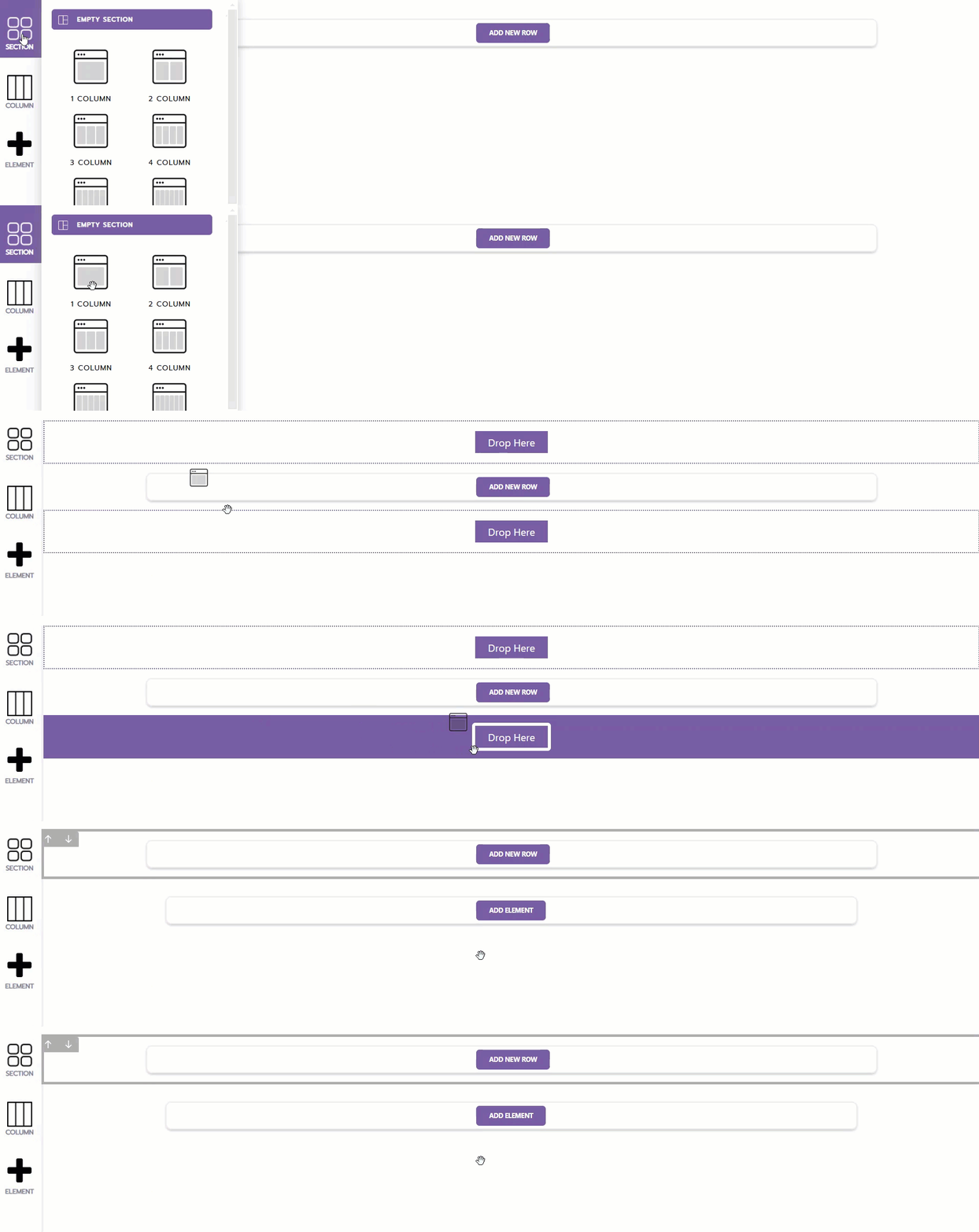
Drag and Drop a Section: From the Section tab in the side panel, drag and drop the desired section layout into your workspace. Available options include empty sections or pre-set layouts with 1 to 4 columns.

Visual Indicators: Sections are identified by a gray border, making them easily distinguishable on your page.
4. Adding Columns
Columns divide your section into smaller areas where you can place elements. They are highly flexible and can accommodate multiple layouts.

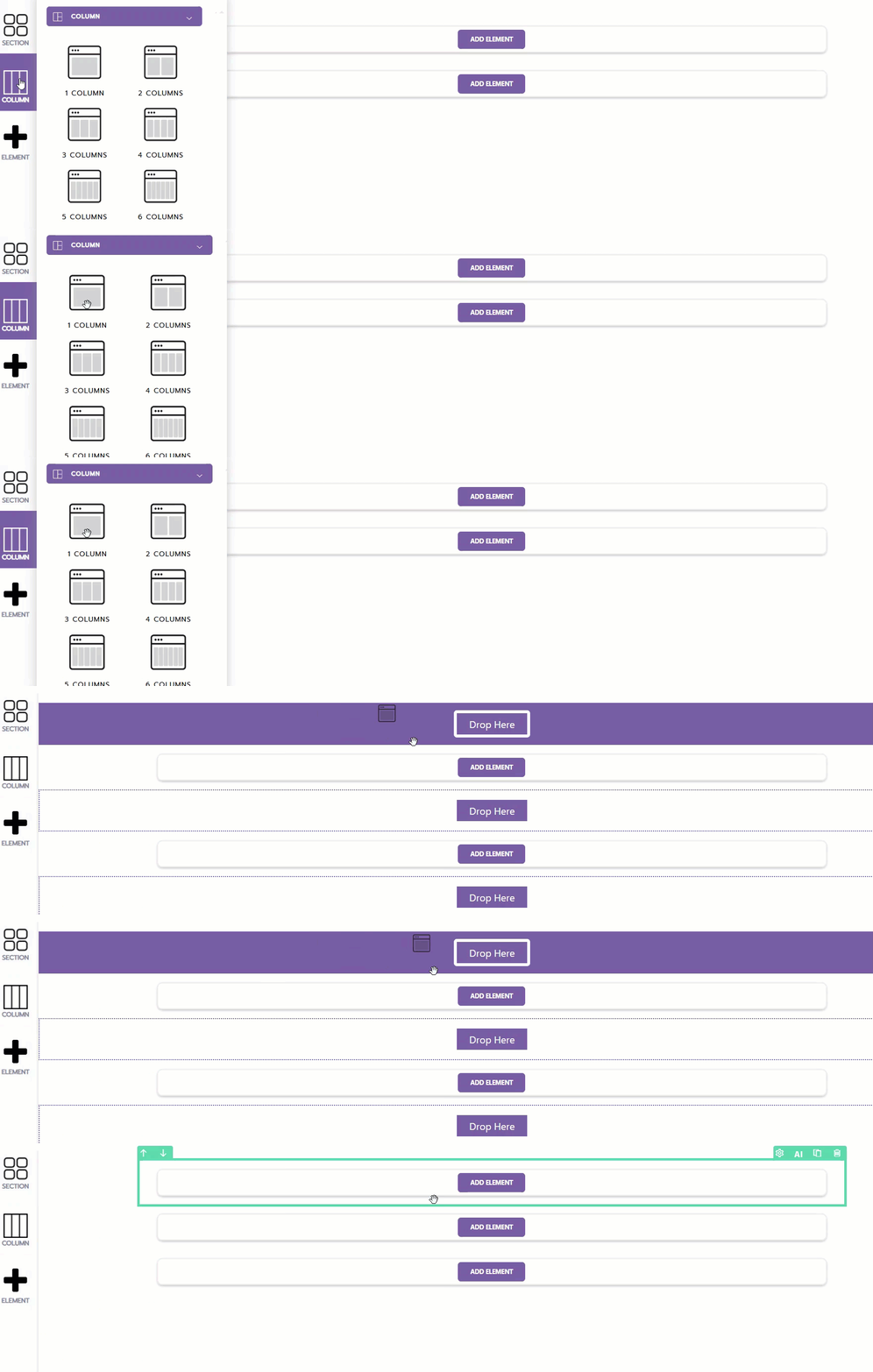
Drag and Drop Columns: Select the Column tab from the side panel and choose the number of columns you want (e.g., 1, 2, 3, or more). Drag and drop the layout into an existing section.

Visual Indicators: Columns are marked with a green border, making it easy to identify where elements can be placed.
5. Adding Elements
Elements are the building blocks of your funnel. You can add headlines, text, images, videos, buttons, and more.

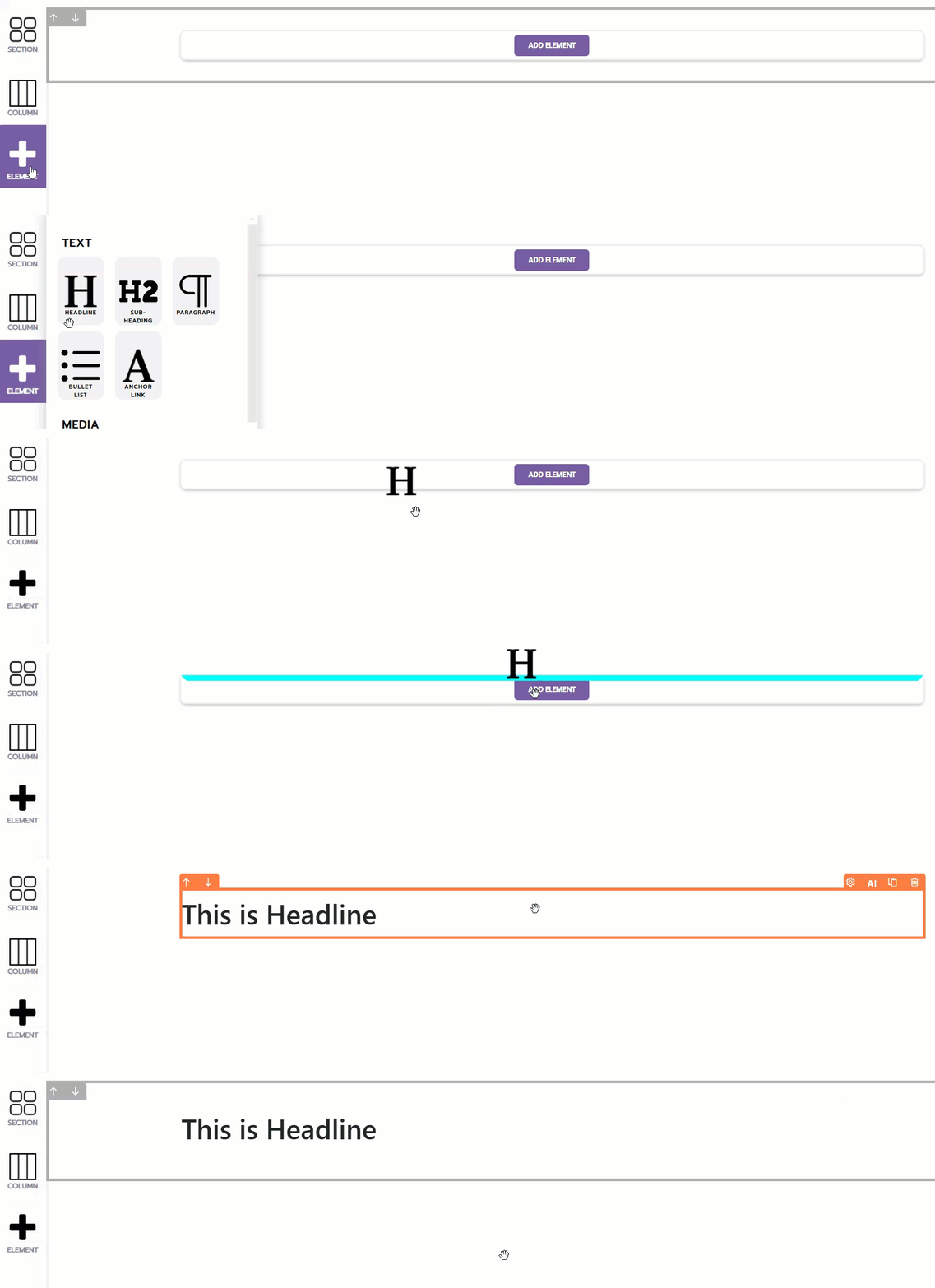
Choose an Element: Navigate to the Element tab in the side panel. Select the type of element you want to add (e.g., headline, paragraph, image, video, etc.).
Drag and Drop: Drag the chosen element into a column. Customize it using the editing tools that appear.
6. Building Your Funnel with Ease
Repeat the process of adding sections, columns, and elements to design your funnel. Use the following tips to optimize your page:
- Organize Your Content: Group related content in sections for better readability.
- Experiment with Layouts: Use different column structures to create visually appealing designs.
- Preview Frequently: Switch between display modes to ensure your design looks great on all devices.
By following these steps, you can create a professional and functional funnel that effectively converts leads and drives sales. Happy designing!