
Ready Made Contacts Section
How to Add and Customize the Contacts Section in InterFunnels
Step 1: Add a New Section
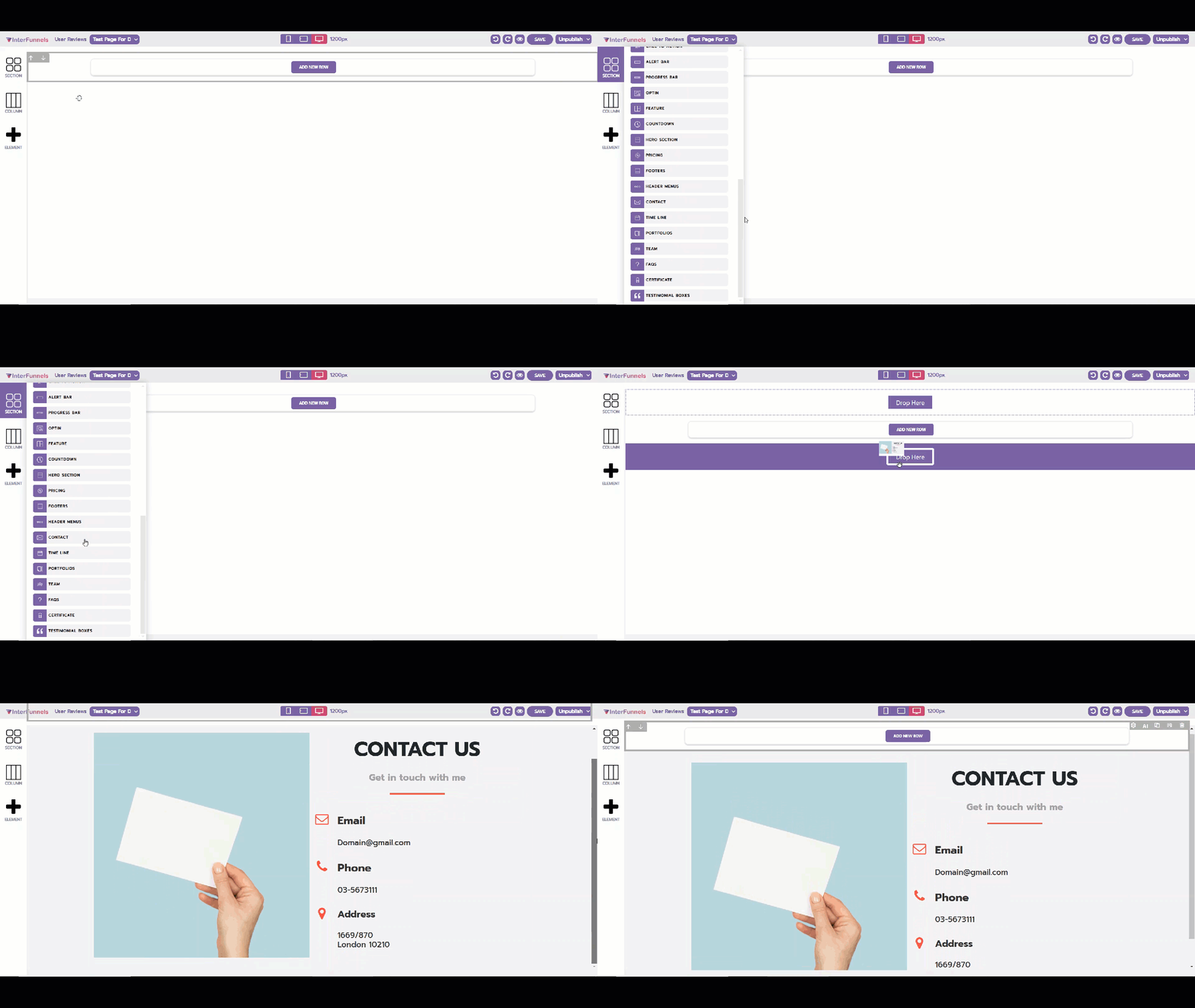
-
Open the InterFunnels page editor.
-
Click on the 'Section' button on the left panel.
-
Drag and drop it onto the canvas where you want the contact section to appear.
Step 2: Insert Columns
-
Click on the 'Column' button from the left panel.
-
Select the appropriate layout (e.g., one column, two columns, or three columns) based on your design preference.
Step 3: Add Contact Elements
-
Click on the 'Element' button on the left panel.
-
Drag and drop the following elements as needed:
-
Text: Add a title like "Get in Touch" or "Contact Us."
-
Form: Insert a contact form with fields for Name, Email, Message, and a Submit button.
-
Icons: Add social media or communication icons (phone, email, address, WhatsApp, etc.).
-
Map: If needed, embed a Google Maps location for your business.
-
Step 4: Customize the Design
-
Click on each element to open the settings.
-
Modify fonts, colors, button styles, and background images to match your brand.
-
Adjust the padding and spacing for better alignment.
Step 5: Configure the Form
-
Click on the form element and access the settings.
-
Connect it to your email or CRM for automatic responses.
-
Set up a thank-you page or message after form submission.
Step 6: Save and Publish
-
Click the 'Save' button to store your changes.
-
Click 'Publish' to make the contact section live.
By following these steps, you can create an engaging and fully functional contact section in InterFunnels. Let me know if you need further assistance!