
Ready Made Teams Section
How to Add and Customize the Teams Section in InterFunnels
The Teams Section in InterFunnels allows you to showcase team members, highlight their roles, and add relevant details. This guide will help you add and customize the Teams Section effectively.
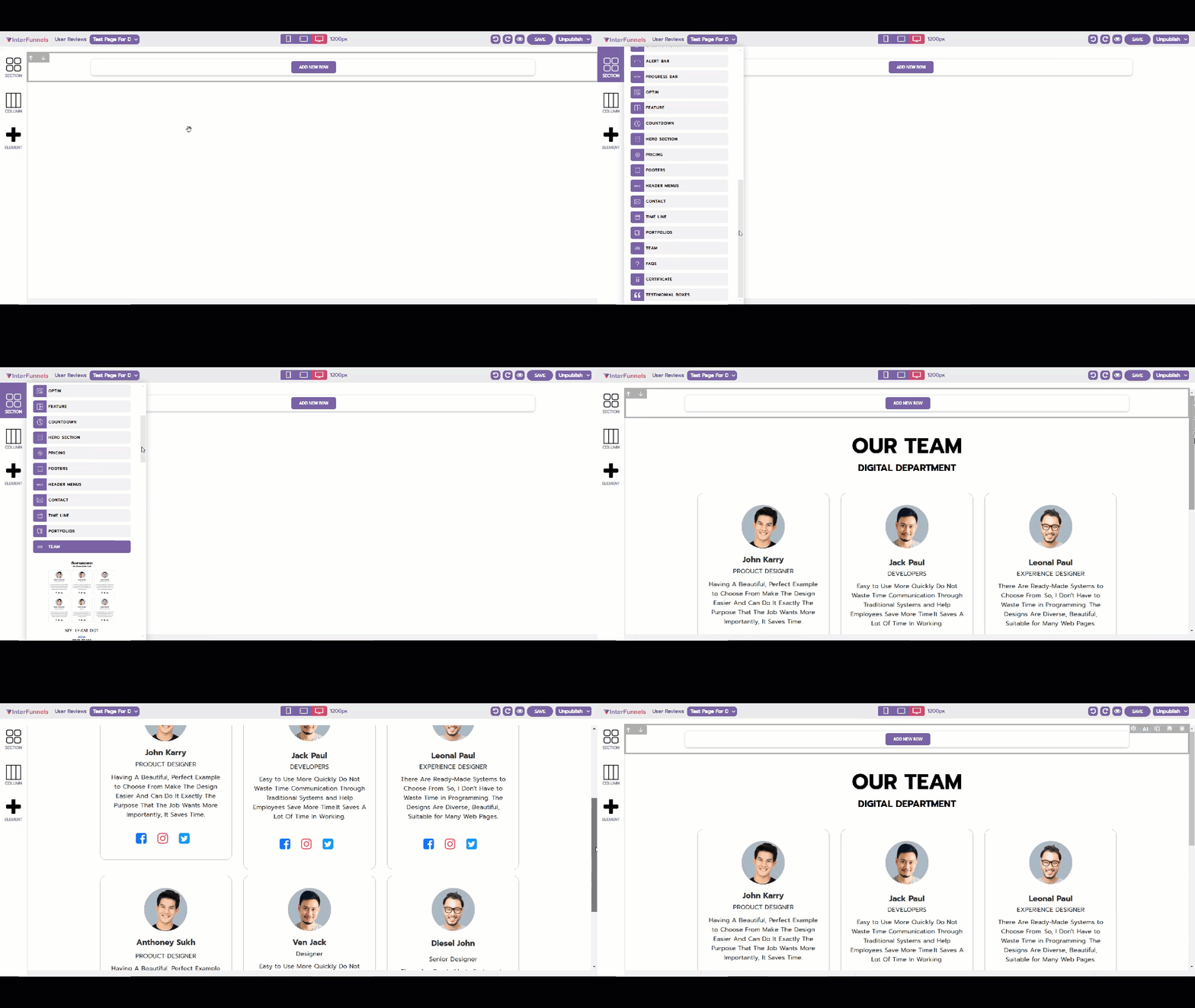
Step 1: Adding the Teams Section
-
Navigate to the InterFunnels Page Editor.
-
Click on the Section button on the left panel.
-
Drag and drop the Teams Section onto your desired location on the page.
Step 2: Configuring Team Member Details
Once the section is placed, follow these steps to customize it:
-
Click on the Team Member Block to open the settings panel.
-
Upload Profile Picture: Add an image of the team member.
-
Enter Name and Designation: Provide their full name and job title.
-
Write a Short Bio: Add a brief description, skills, or expertise.
-
Include Social Media Links (Optional): Add links to LinkedIn, Twitter, or other profiles.
Step 3: Customizing the Design
To match the section with your brand, adjust:
-
Font and Text Styles: Modify font type, size, and colors.
-
Background and Borders: Change the section background, add borders, or apply shadow effects.
-
Spacing and Alignment: Adjust padding, margin, and layout structure for a cleaner look.
Step 4: Saving and Publishing
Once satisfied with the customization:
-
Click the Save button to store your changes.
-
Preview the page to ensure proper formatting.
-
Click Publish to make it live!
Your Teams Section is now successfully added and customized!