
Ready Made Footer Section
How to Add and Customize the Footer Section in InterFunnels
The Footer Section in InterFunnels is essential for providing navigation links, contact details, legal information, and social media connections at the bottom of your funnel pages. This guide will walk you through adding and customizing the Footer Section to improve user experience and branding.
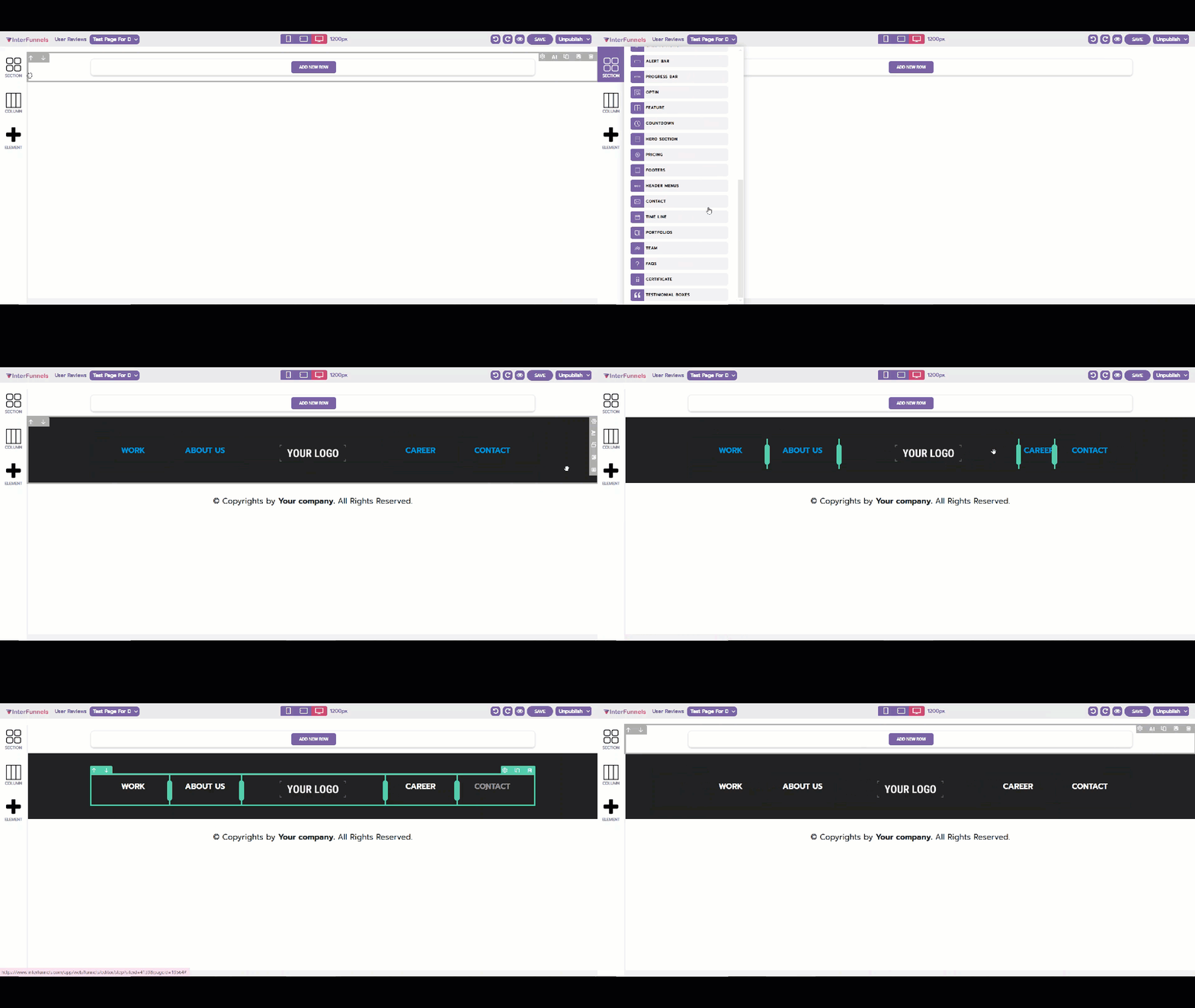
Step 1: Accessing the Funnel Builder
-
Log in to your InterFunnels account.
-
Open the funnel page where you want to add the Footer Section.
-
Click on the Editor to start editing the page.
Step 2: Adding the Footer Section
-
On the left sidebar, click on the Section icon.
-
Locate the Footer Section in the pre-designed section templates.
-
Drag and drop the Footer Section to the bottom of your funnel page.
Step 3: Customizing the Footer Section
Once the Footer Section is added, you can tailor it to fit your brand identity and functional needs.
1. Editing Footer Content
-
Click on the Footer Section to open the settings panel.
-
Modify the text elements such as company name, contact information, copyright details, and disclaimers.
-
Add or remove sections like About Us, Privacy Policy, or Terms & Conditions.
2. Adding Navigation Links
-
Click on the Menu/Links section within the footer.
-
Add internal links to other pages in your funnel (e.g., Home, Contact, FAQ).
-
Customize the link text, font, and colors.
3. Integrating Social Media Icons
-
Click on the Social Media Icons section.
-
Add links to your social media profiles (Facebook, Instagram, LinkedIn, etc.).
-
Adjust the icon size, color, and placement.
4. Customizing the Design
-
Change the background color or upload a background image.
-
Adjust the text color and font style for better readability.
-
Modify padding, margins, and alignment to fit your design layout.
5. Adding a Call-to-Action (Optional)
-
Include a newsletter signup form or contact form in the footer.
-
Add a CTA Button linking to a lead capture page or support chat.
Step 4: Saving & Publishing
-
Click the Save button at the top-right corner to save your changes.
-
Click Preview to check how the Footer Section appears.
-
Once satisfied, click Publish to make it live.
Conclusion
The Footer Section in InterFunnels helps enhance credibility, improve navigation, and provide essential information to visitors. By customizing the content, links, and design, you can create a professional and functional footer that strengthens your brand.
Start optimizing your Footer Section today for a better user experience!