
How to Set Up and Manage Shipping in InterFunnels Store
Configuring your shipping settings is crucial for delivering products to your customers accurately and cost-effectively. This guide will walk you through setting up your global shipping zones and configuring shipping for individual products in InterFunnels.
Part 1: Configuring Global Shipping Settings
Global shipping settings define where you ship from and create rules for different regions.
Step 1: Access the Shipping Settings
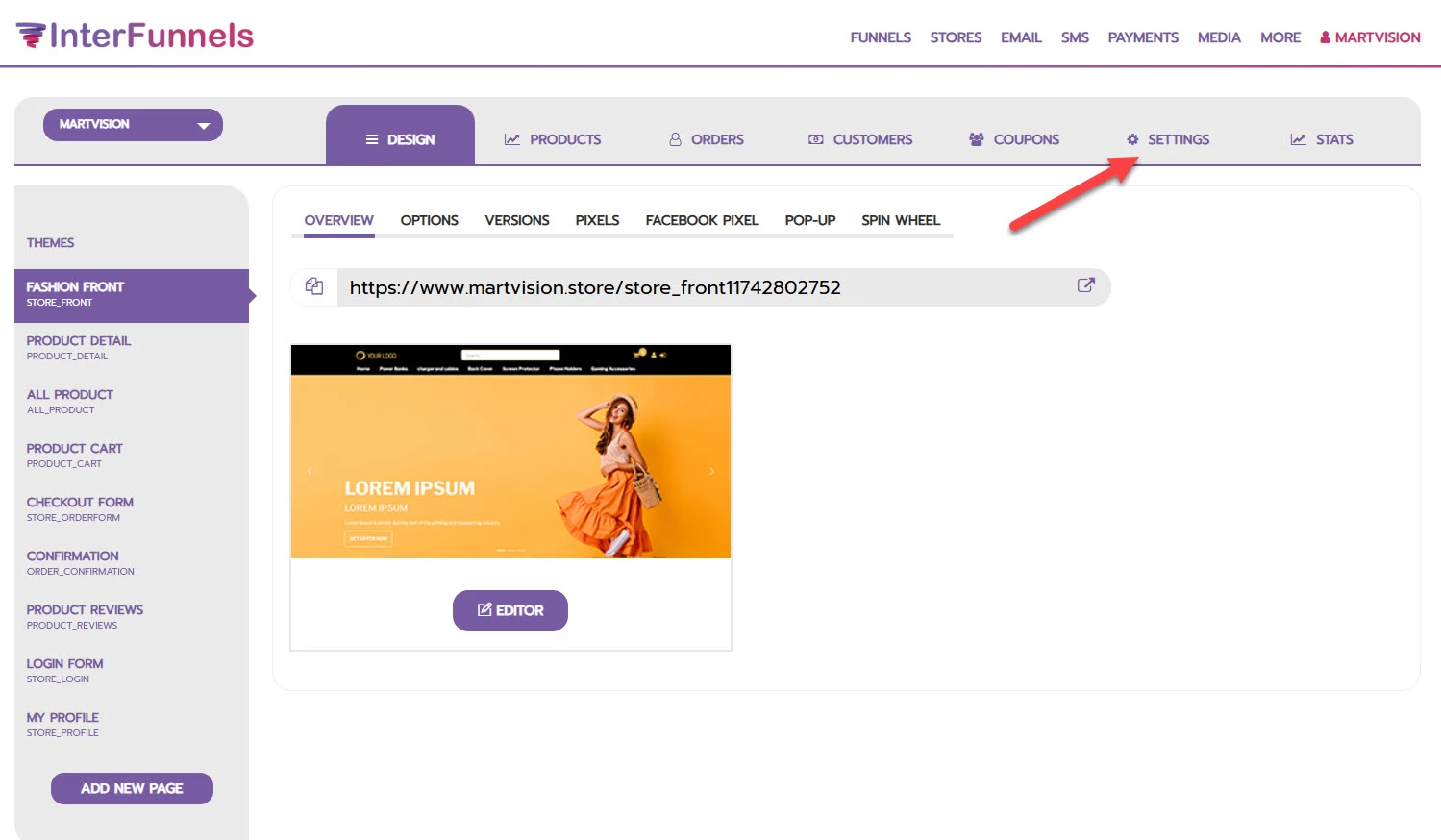
-
Log in to your InterFunnels dashboard.
-
Open your store and click on SETTINGS.
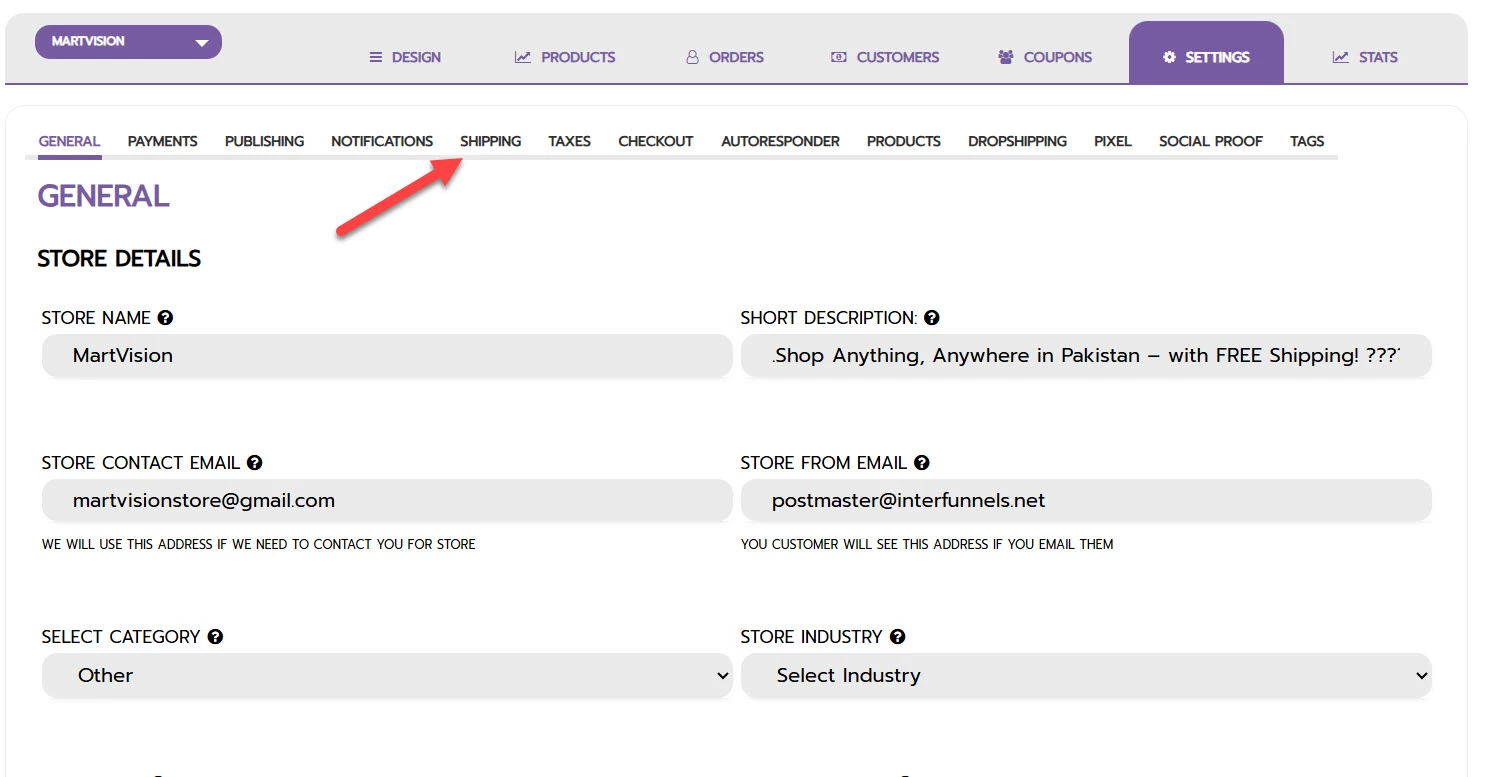
-
In the top menu of the Settings panel, click on SHIPPING.
Step 2: Set Your Shipping From Location
This is your warehouse or business address.

-
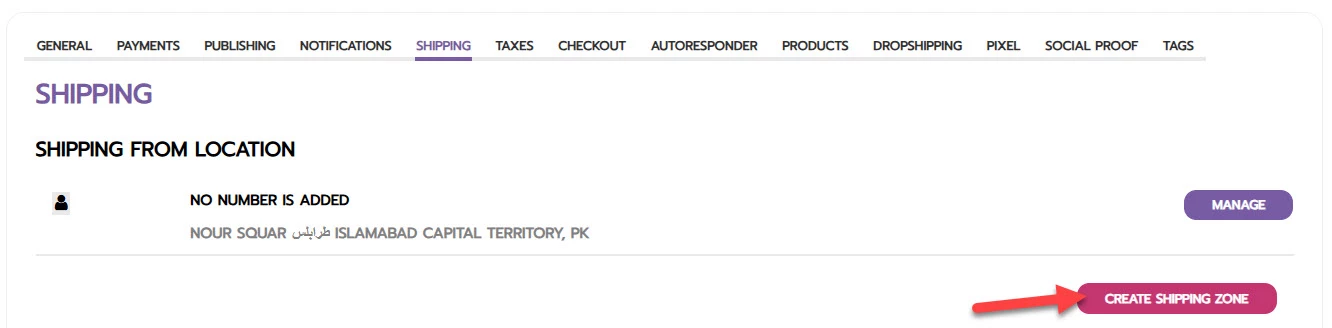
In the SHIPPING FROM LOCATION section, ensure your store's address is correct. If not, click MANAGE to update it.
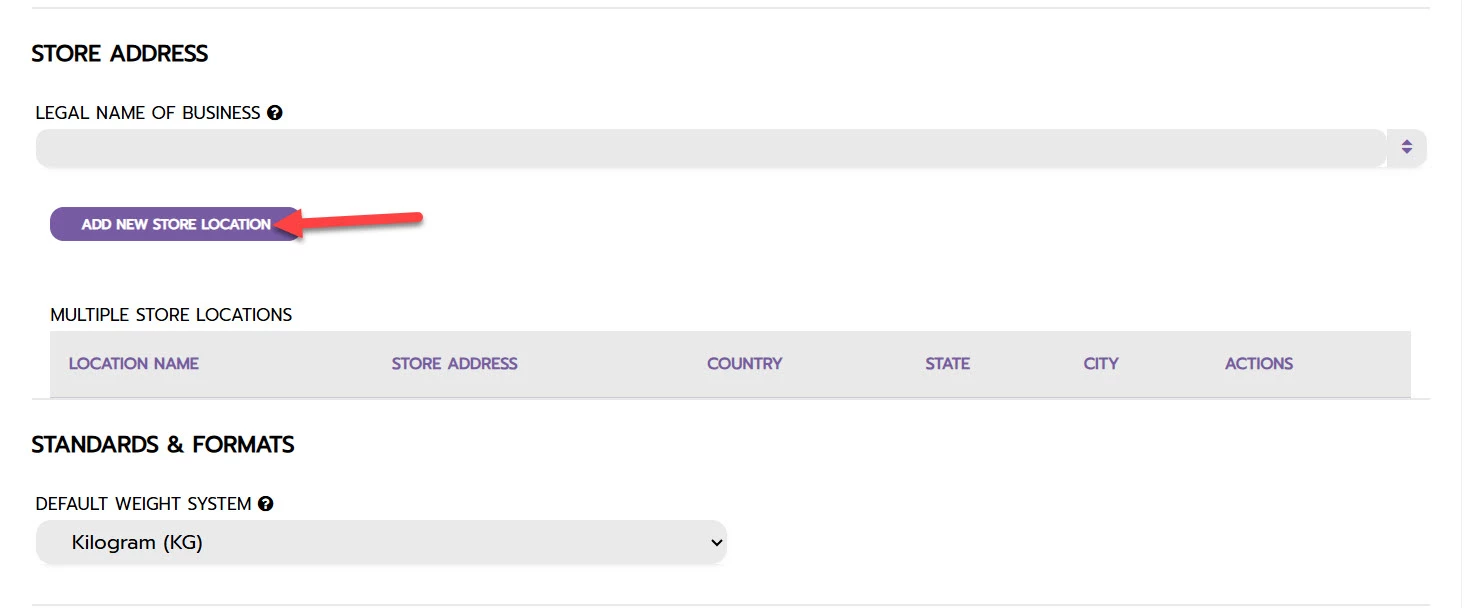
- Click on Add New Store Location
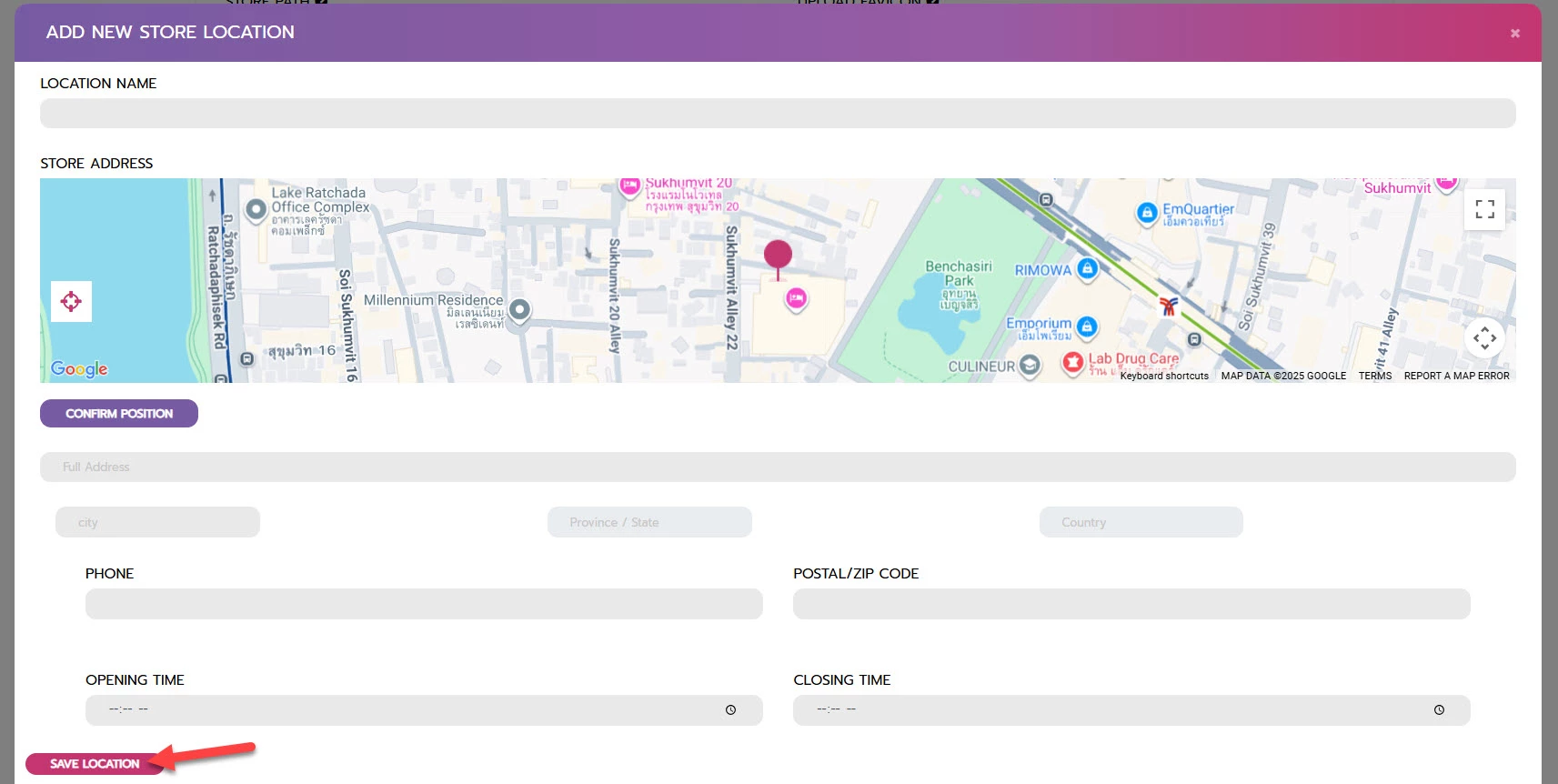
To add a new address, go to STORE ADDRESS and click ADD NEW STORE LOCATION. Fill in the Legal Business Name and address details.
Step 3: Create a Shipping Zone
Shipping zones allow you to set different rates for different countries or states.
-
In the SHIPPING tab, click the CREATE SHIPPING ZONE button.

-
A pop-up will appear. Enter the following details:
-
ZONE NAME: Give it a recognizable name (e.g., "New York").
-
COUNTRY: Select the target country.
-
STATE/PROVINCE: Select the specific state or province.
-
DELIVERY TIME: Set the estimated delivery time in days, hours, and minutes.
-
-
Click SAVE.
Step 4: Add a Shipping Rate to the Zone
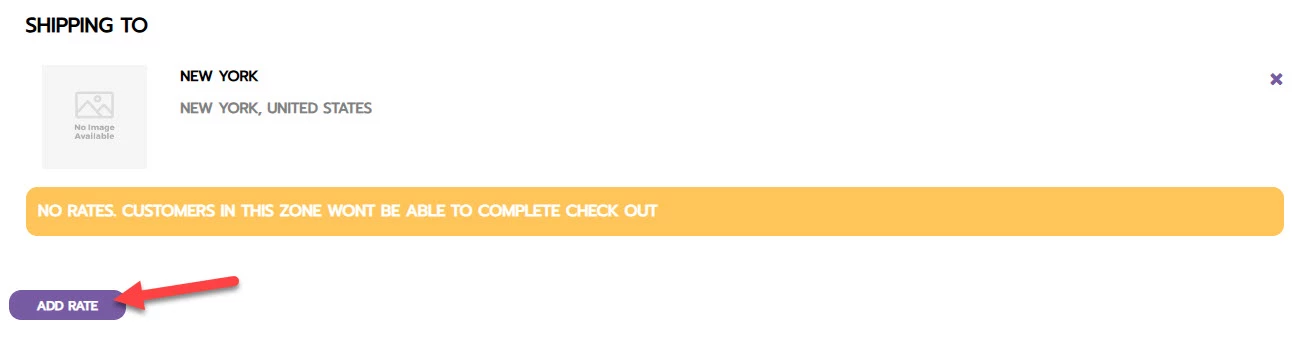
Without a rate, customers in this zone cannot check out.
-
After creating a zone, you will see it listed. Click ADD RATE for that zone.

-
In the ADD SHIPPING RATE pop-up:
-
RATE NAME: Enter what the customer will see (e.g., "Standard Shipping").
-
Condition: Select Based on Item Weight.
-
MINIMUM WEIGHT: Set the lower limit (e.g.,
0KG). -
MAXIMUM WEIGHT: Set the upper limit (e.g.,
1KG). -
SHIPPING FEE: Enter the cost for this weight range (e.g.,
23). -
Use this rate as default rate: Check this if applicable.
-
-
Click SAVE.
Part 2: Configuring Shipping for Individual Products
Each product must have its shipping details, especially weight, to use the global shipping rates you set up.
Step 1: Access Your Products
-
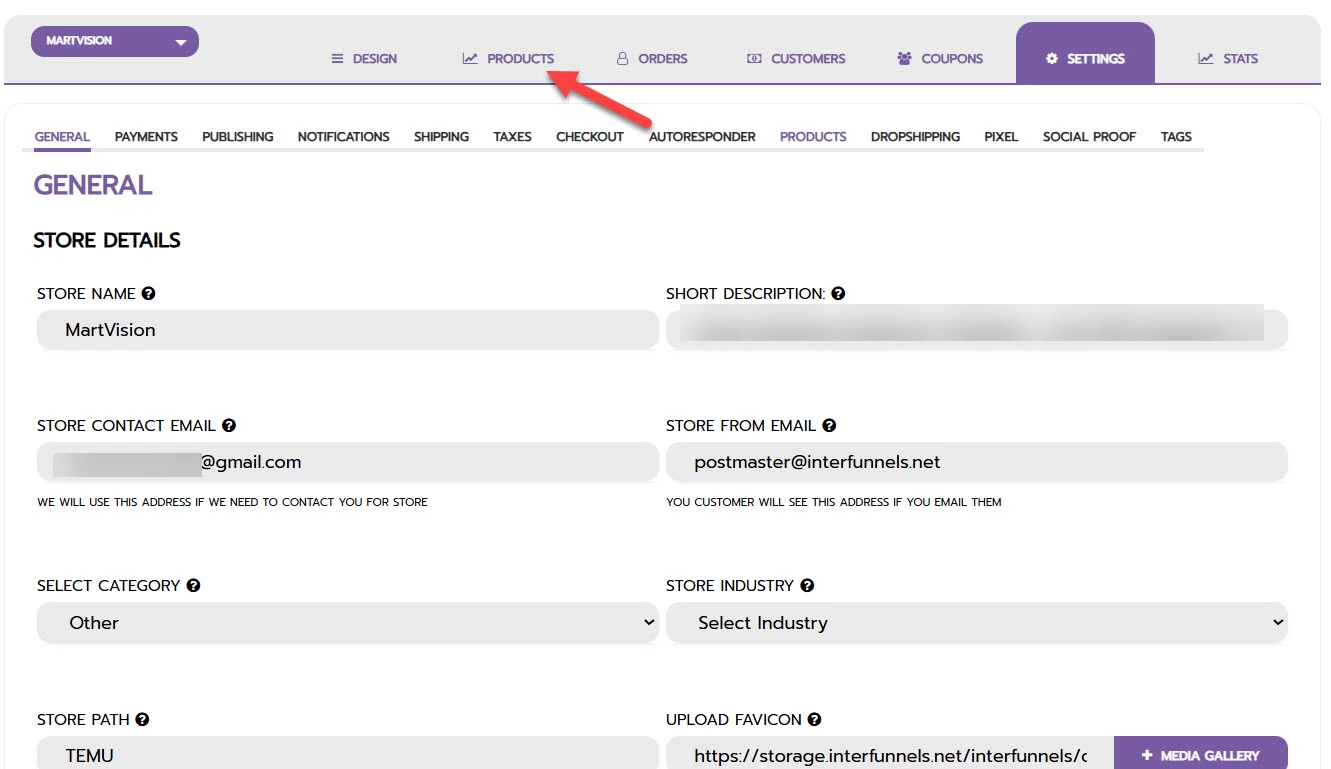
From the Store dashboard, click on PRODUCTS in the left sidebar.

-
Find the product you want to edit and click the EDIT button.
Step 2: Configure Product Shipping Details

-
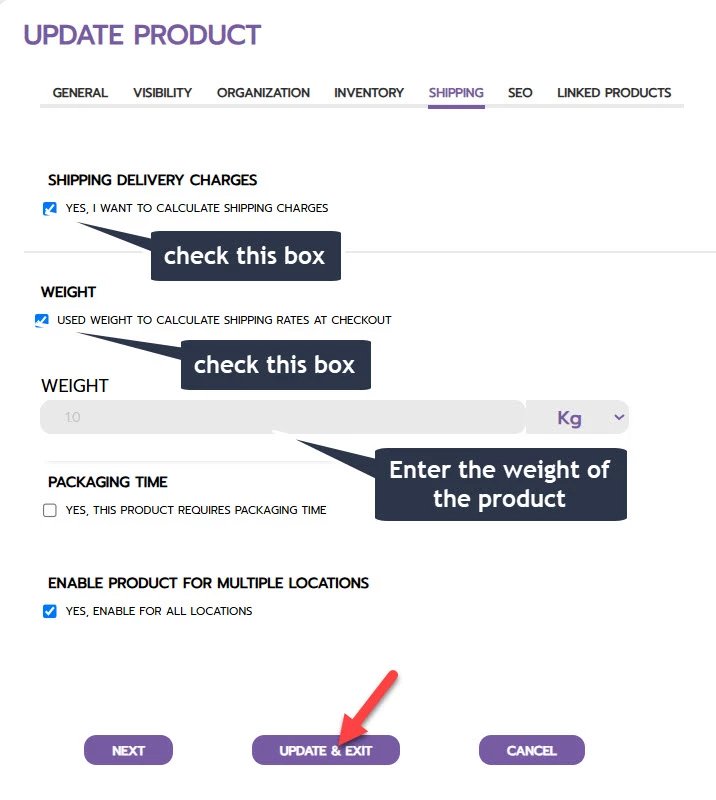
In the product editor, click on the SHIPPING tab.
-
Enable Shipping Calculation:
-
Check the box for "Yes, I want to calculate shipping charges."
-
-
Enter Product Weight:
-
Check the box for "Weight."
-
Enter the product's weight in the field (e.g.,
10). -
Ensure the unit (e.g., Kg) matches your global default setting.
-
-
Set Packaging Time (Optional):
-
Check the box for "Yes, this product requires packaging time" if it needs to be prepared before shipping.
-
-
Save Your Changes:
-
Click UPDATE & EXIT to apply the shipping settings to this product.
-
Conclusion
By properly configuring both your global shipping zones and individual product details, you ensure a seamless and accurate checkout experience for your customers. Your shipping rates will be calculated automatically based on the product weight and the customer's delivery location, helping you manage logistics efficiently and build trust with your audience.
Start configuring your shipping settings today to provide clear and reliable delivery options!