
InterFunnels Global Store Settings
The Global Settings menu is the nerve center of your InterFunnels store. It's where you define everything from your store's name and address to how it handles taxes, shipping, and customer checkouts. Properly configuring these settings is crucial for creating a professional, functional, and trustworthy online store.
This guide will walk you through each tab within the Settings menu.
How to Access Global Settings

-
From your main InterFunnels dashboard, navigate to SETTINGS in the left-hand sidebar.
-
You will be presented with a list of tabs on the left: GENERAL, PAYMENTS, PUBLISHING, NOTIFICATIONS, SHIPPING, TAXES, CHECKOUT, AUTORESPONDER, PRODUCTS, DROPSHIPPING, PIXEL, SOCIAL PROOF, TAGS.
1. GENERAL Tab
This tab contains your store's foundational information.

-
Store Details:
-
Store Name: The official name of your business.
-
Short Description: A brief tagline or description of your store.
-
Store Contact Email: The email where InterFunnels (and customers) can contact you. This is crucial for admin notifications.
-
Store From Email: The email address that appears as the "sender" on emails sent to your customers.
-
Select Category / Store Industry: Categorize your store (e.g., Food). This helps with internal organization and reporting.
-

-
Store Path: The unique URL subdirectory for your store (e.g., test-store-31755773197). Be cautious changing this.
-
Upload Favicon: Upload a small icon (16x16 pixels) that appears in the browser tab next to your store's title.
-
Store Address & Legal Name: Enter your business's physical address and legal name. This is often used for invoices and legal compliance.
-
Add New Store Location: If you operate from or ship from multiple warehouses, you can add them here.

-
Standards & Formats: Set your default measurement system (e.g., Kilograms or Pounds).
-
Social Settings: Define a default title, description, and image that will appear when your store link is shared on social media platforms.
Action: Always click SAVE after making changes.
2. PAYMENTS Tab

This is where you configure how you get paid. (This was covered in detail in the previous payment methods tutorial).
-
Currency Symbol: Set the default currency for your store (e.g., $, €, £). This affects all product prices.
-
Payment Methods: This section provides a shortcut to add and manage payment gateways like PayPal, Stripe, and Bank Transfer.
To Learn more about adding payment method Click Here
3. PUBLISHING Tab
-
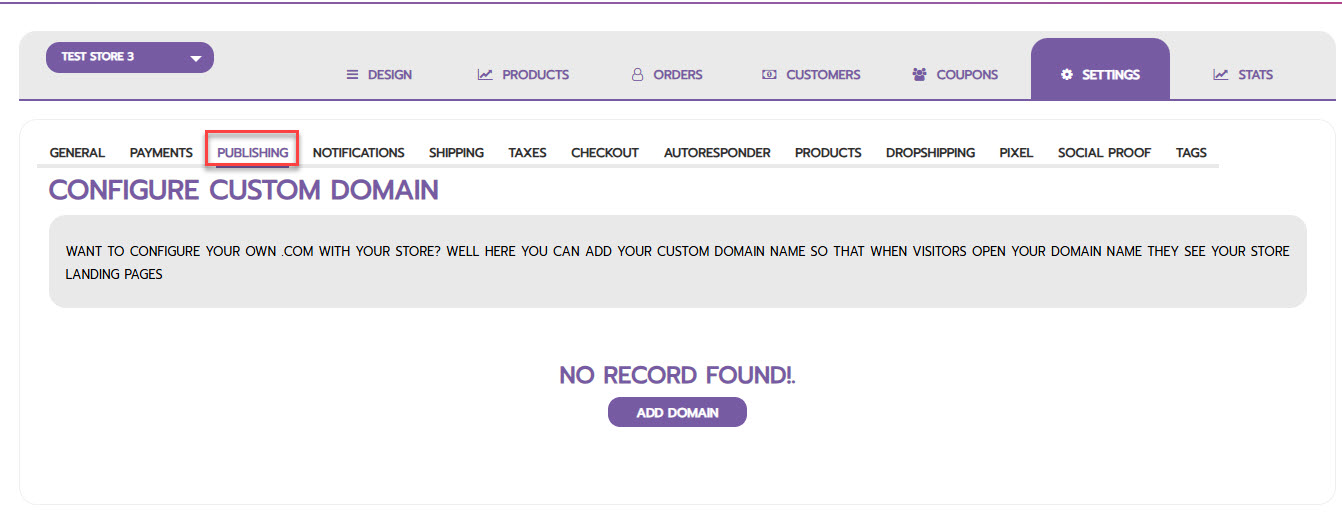
Custom Domain: This is where you connect your own professional domain name (e.g., www.mystore.com) to replace the default InterFunnels subdomain. Click "ADD DOMAIN" and follow the instructions to point your domain to InterFunnels.
4. NOTIFICATIONS Tab

Automated emails are vital for keeping you and your customers informed.
-
This tab allows you to enable/disable and customize various email alerts:
-
Order Receipt (Customer): The invoice sent to the customer after purchase.
-
Order Receipt (Admin): An alert sent to you for a new order.
-
Order Confirmed (Customer & Admin): Notifications when an order is confirmed.
-
Order Fulfillment (Customer & Admin): Notifications when an order is shipped or completed.
-
-
Action: Click "SETTING UP" next to each one to customize the email template.
5. SHIPPING Tab
-
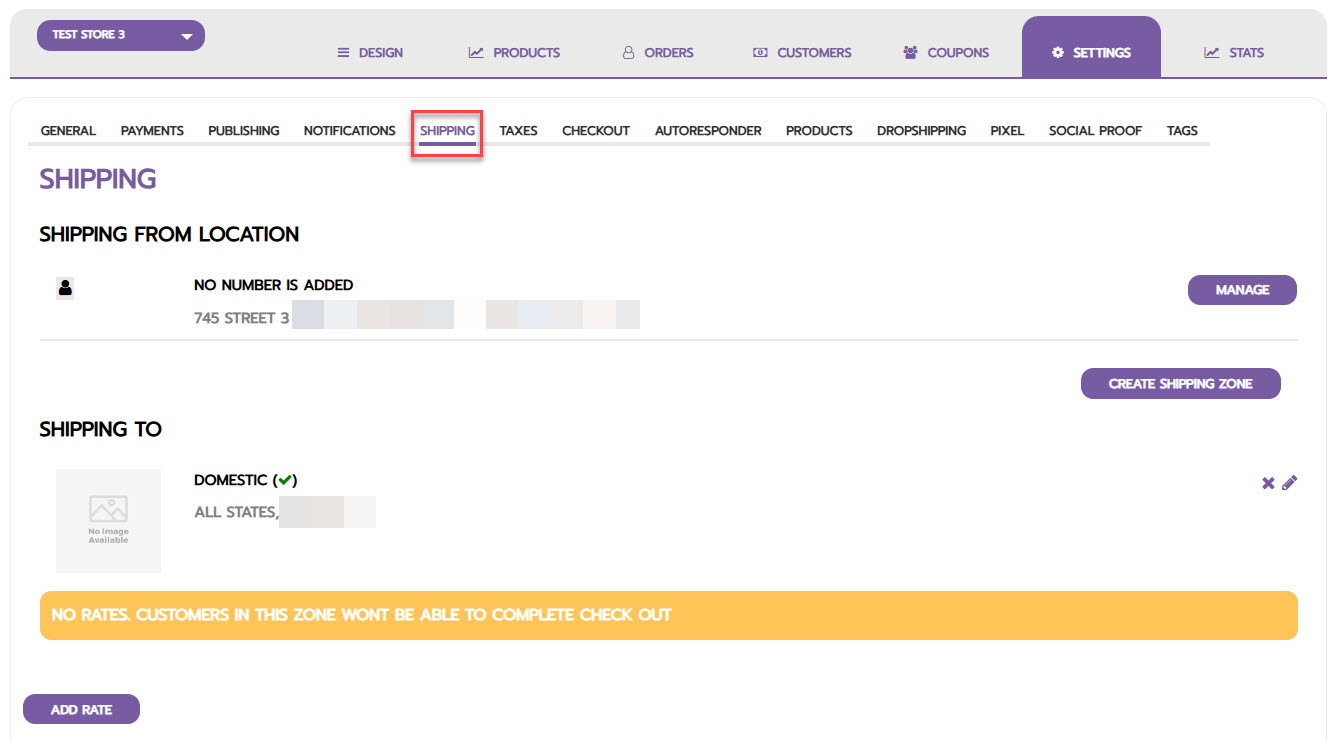
Shipping From Location: Confirm the address packages will be shipped from.
-
Shipping Zones & Rates: This is critical. You must define shipping zones (e.g., "Domestic," "International") and add rates (e.g., flat rate, free shipping over $50, weight-based rates) for each zone. If no rates are added, customers in that zone cannot complete checkout.
6. TAXES Tab
-
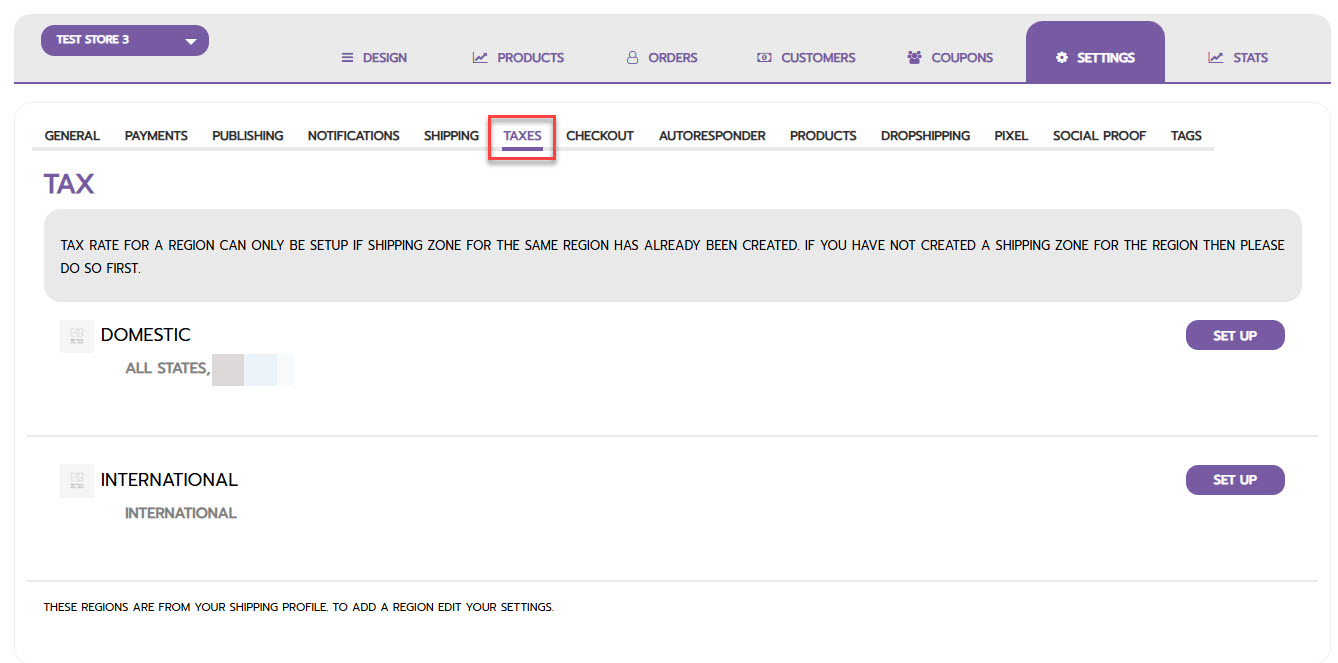
Prerequisite: You must first create a Shipping Zone for a region before you can set its tax rates.
-
How to Use: For each zone (e.g., "Domestic"), click "SET UP" to define the tax rate (e.g., 6% for sales tax). This will automatically be calculated at checkout.
7. CHECKOUT Tab


-
Customer Accounts:
-
Disabled: Guests only. Simplest but loses customer data.
-
Optional: Recommended. Lets customers choose to check out as a guest or create an account.
-
Required: Forces account creation, which can increase cart abandonment.
-
-
Order Processing:
-
Use shipping address as billing: Reduces friction at checkout by minimizing form fields.
-
8. AUTORESPONDER Tab
-
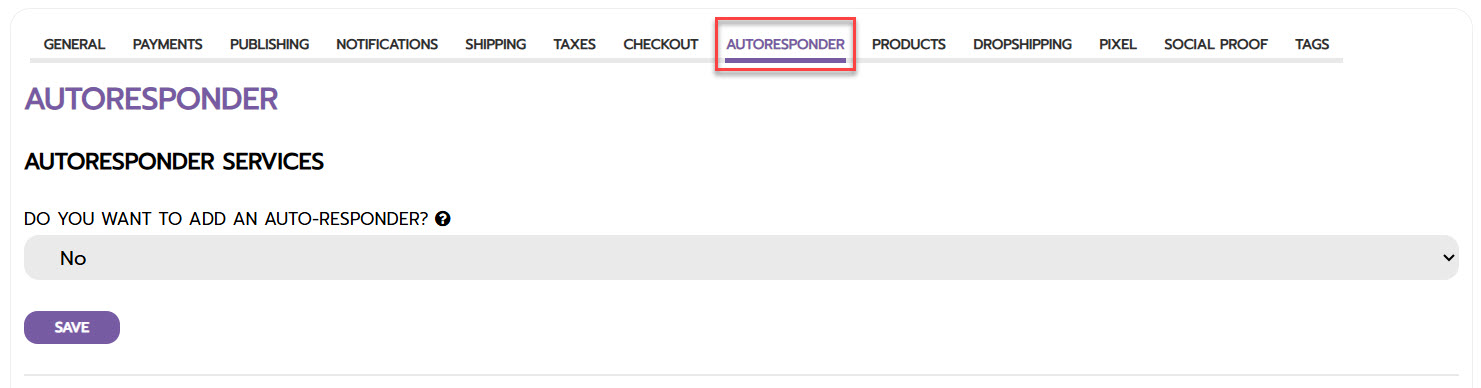
Integration: This is where you connect your email marketing service (e.g., Mailchimp, ActiveCampaign) to InterFunnels to automatically add customers to your email lists. Select "Yes" and follow the prompts to connect your service.
9. PRODUCTS Tab

-
Products Sorting: Set the default order products appear in collections (e.g., by name, price).
-
Manage Stock: A global toggle to enable or disable inventory tracking for all products.
10. DROPSHIPPING Tab

-
Store ID & API Key: If you use dropshipping, this provides the credentials needed for the InterFunnels browser extension, which helps you easily import products from suppliers like AliExpress.
-
Download Extension: Provides a link to download the necessary helper tool.
11. PIXEL Tab
-
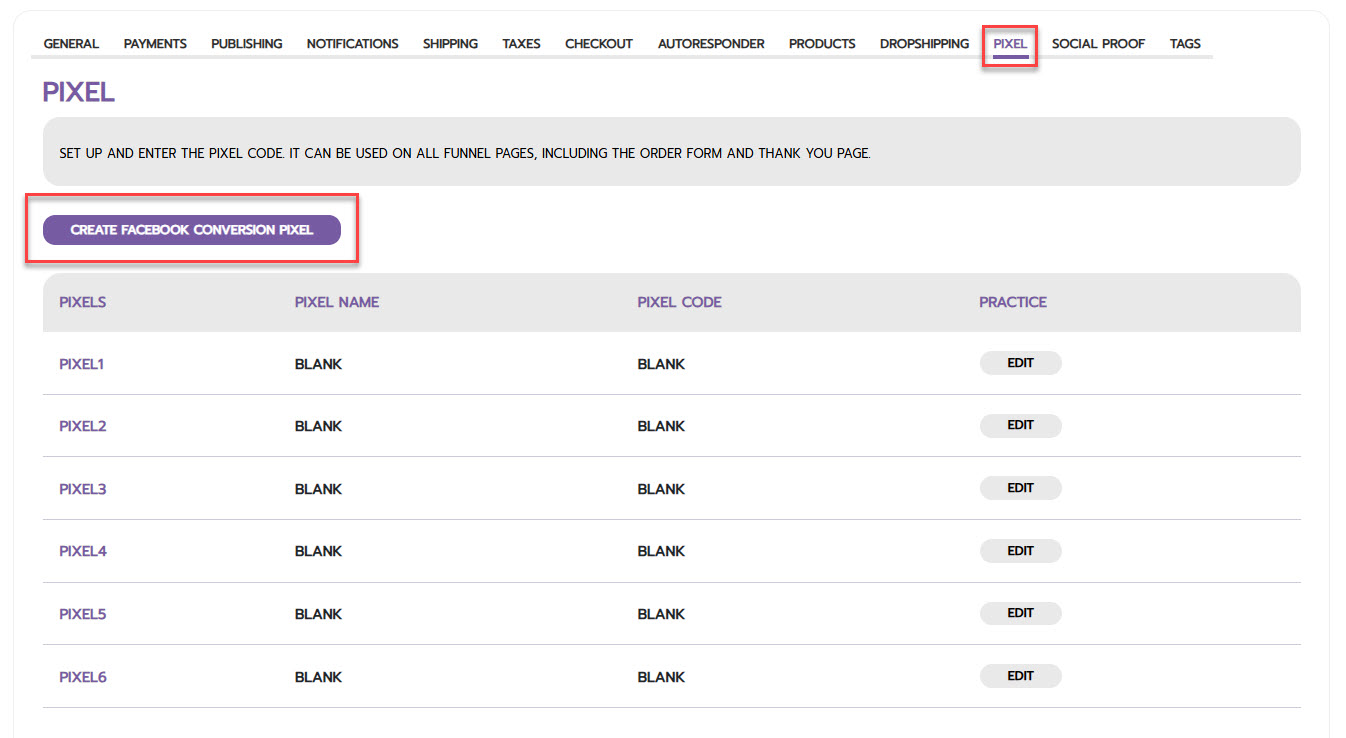
Facebook Conversion Pixel: Here you can create and manage multiple Facebook pixels. Enter the Pixel Name and your unique Pixel ID to track visitor activity across your entire store for retargeting ads and conversion tracking.
12. SOCIAL PROOF Tab
-
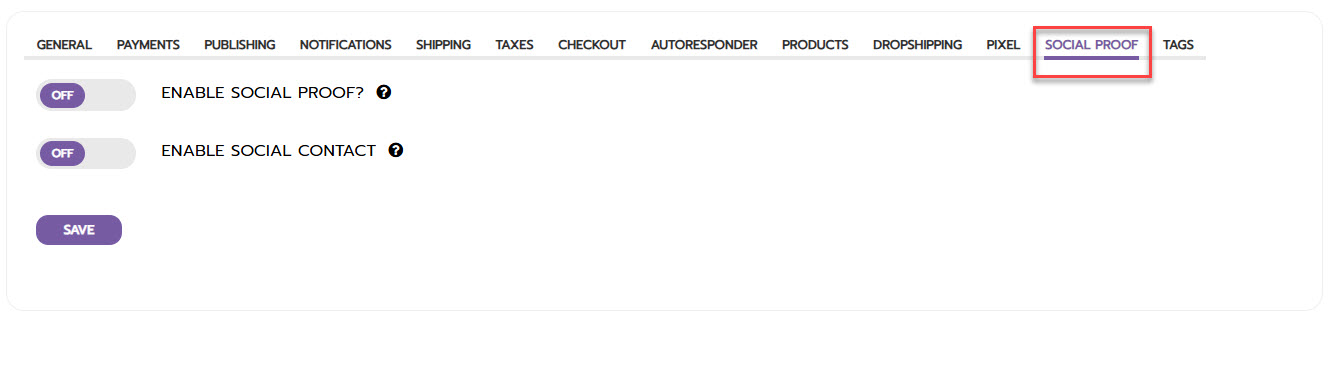
Enable Social Proof: When ON, this can show recent purchases or notifications on your site to build trust and create urgency.
-
Enable Social Contact: Likely controls the display of social media icons/links.
13. TAGS Tab

-
Organize with Tags: Create colored tags for Products, Customers, and Orders. This is a powerful organizational tool for filtering, segmenting, and managing your store (e.g., a "High-Value" customer tag, a "Best-Seller" product tag, an "Unfulfilled" order tag).
Conclusion
The Global Settings menu is the foundation of your store's operations. Taking the time to meticulously configure each section—especially Shipping, Taxes, Payments, and Notifications—ensures your store runs smoothly, appears professional, and provides a seamless experience for your customers from browsing to checkout and beyond. A well-configured store is a successful store.